With Tahoe 26.6 and Tahoe 26.6.1 updates, the time taken to load the Plugins in any GP5.2.2 Project has slowed to a crawl -and at the same time- I’m now getting pops and crackles I never got before.
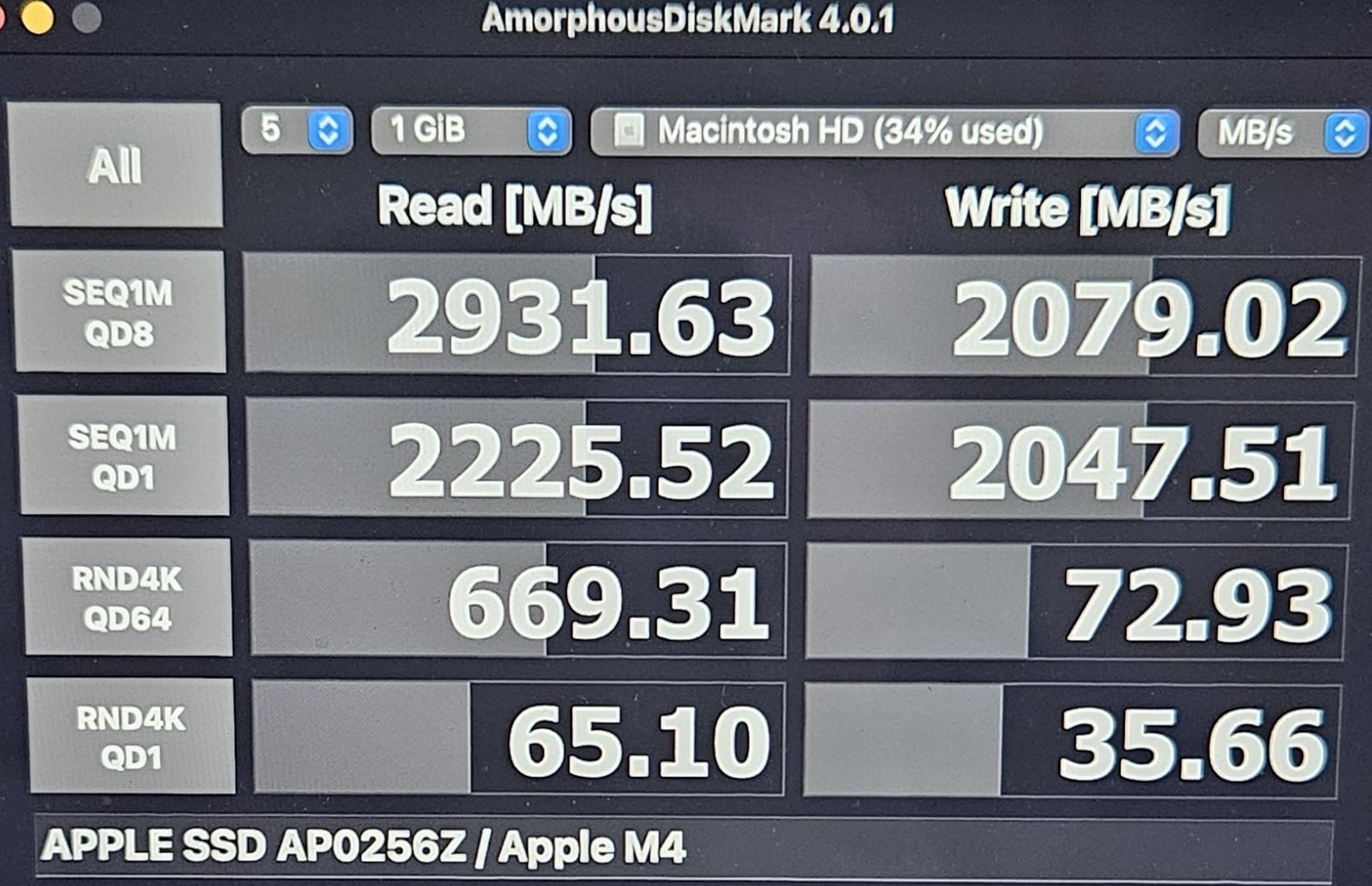
I ran the following MAC OS Disk check and got the following below. I also re-installed 5.2.2 and no change. Any thoughts / suggestions / ideas I could try to fix this ?
Been doing quite a bit of deep diving into Tahoe and recent MAC OS’s for low latency audio.
The pretty much universal consensus is that Tahoe and recent MAC OS’s are highly optimized to optimally run and allocate dynamically all necessary audio and non-audio processes and proceedures to be super smooth at ultra low latencies … hence no need to actually “turn anything off” which makes all the background stuff “less efficient” - other that Siri / A.I. which non-stop-constantly interrogates any and all incoming data and inputs
Whereas with Windows 10 and 11, tuning off background services and processes is critical for any hope of stable ultra-low latency audio
Per many sources, that is not true – macOS Tahoe can be further optimized for real-time audio by stripping away background resource hogs, disabling wireless adapters, and managing system services that interrupt low-latency audio buffers.
For me, %99 of it is not needed as (i) my Live Gigging MacBook Air M4 is never connected to the Internet - only once in a blue moon when I have to authorize a plugin etc (ii) Time Machine is always set to “Manual” and (iii) its always connected to wall [non-battery] power.
Other than turning off all Siri and Apple Intelligence, every other single “background” / “system” sort of tweak thing I have disabled [and I’ve tried them all :)] has made zero positive or negative difference, so I just leave them on and let the OS do its “thing”
Am running my Motu M2 at 96k / 32 Samples with GP5 + 2 x Genome + UAD G/Paradise all at a measured Oblique RTL of ~3.4ms and never a pop or a click. GP5 CPU sits around %30 at load and the Mac CPU barley ever gets above %10 at load.
The M4 handles it without literally even getting into 1st gear.
It makes it as close as possible to a real tube Amp rig ie: real Tube Amp [fully Analog] rigs have absolutely zero 0 ms Latency and absolutely zero 0 Aliasing.

 but maybe it might help others