I don’t have the CP70, you must have bought the very latest version. I didn’t bother upgrading to that one, the cost seemed unreasonable for the relatively small number of additions.
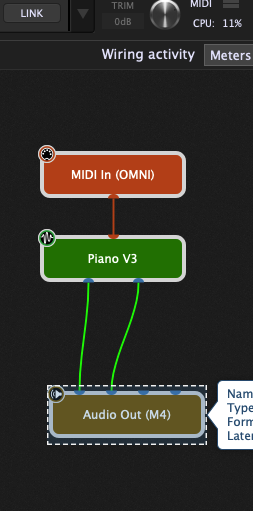
But if I run their Piano3 and play chords, CPU reaches about 11%
I don’t have the CP70, you must have bought the very latest version. I didn’t bother upgrading to that one, the cost seemed unreasonable for the relatively small number of additions.
But if I run their Piano3 and play chords, CPU reaches about 11%
ALT-SHIFT-DEL does nothing in Windows 11. Are you asking me to look at Task Manager? I can certainly do that. I’ll also turn off my A/V and see if that makes a difference and report back.
Yes, I meant Alt-Ctrl-Delete.
Not Alt-Ctrl-Delete. but Alt-Ctrl-Escape
(
This should start the Task Manager.)
Did you check the powerprofile you’re using? It can make a huge difference.
(Edit: alt-shift-escape)
Then enter the realm of optimization 
Link: FREE e-book by Deskew - Optimize your Windows PC for the stage!
–
Ctrl + Shift + Esc
Given this is a Windows machine, have you used any of the available guides regarding optimizing your Windows machine for real-time audio production? When I was using Windows, I found that certain devices would certainly create issues, most notably any active WIFI device, but there are others as well. When I built my custom rackmount PC to use for real-time audio, I intentionally did not add a WIFI device to the machine for this very reason.
Effects can eat up a lot of cpu. Maybe look into that too.
As mentioned previously in this thread, I have already gone through the entire guide “Optimize your Windows PC for the Stage”. No effect. I’ll play with the power settings. Here are the highlights of current settings: turn off hard disks: never; wireless adapter power saving mode: maximum performance; sleep and hibernate: never; graphics power plan: maximum performance; processor performance core parking min cores: 100%; minimum processor state:
100%; maximum processor state: 100%.
I borrowed a 2022 HP EliteBook with a faster processor than what I currently have in my 2019 Zbook but it only has 16GB RAM vs. my 32GB. I’ll try to test that tonight.
That’s generally a no-no when running audio apps with plugins. I understand that your laptop is not a music-exclusive machine, but I would still disable all anti-malware/anti-virus apps while you’re diagnosing the problems you’re having.
I am not sure if you already mentioned this, but what is the particular patch using. Maybe it makes sense for other people to check out that particular patch (maybe its is a CPU killer).
Already mentioned. It’s quite a few plugins. Many of the instruments within the Arturia suite, plus a few from other developers. As also mentioned earlier, even when others confirm that the Arturia CS-80 plugin causes a more significant increase in CPU usage, there is no noise crackle for them. For me, any CPU above 40% (roughly) starts to cause crackling. Gets worse the higher the CPU usage.
Good tip on disabling A/V. I’ll try that as well tonight when I can get back to testing things.
Actually, if you’re able to arrange it, I’d be more interested in testing with a different audio interface. I would even be curious as to how the internal audio behaves (won’t be great compared to external system but results might be interesting)
I’ll try to get ahold of a different audio interface. Just to reiterate, this high CPU utilization happens even with no audio interface connected. It seems to be higher than others on this thread who have tested with the same plugins. But I understand that even though the CPU usage might be high, it shouldn’t crackle the audio
By the like this.
way, I really appreciate all of the assistance and recommendations provided so far. I just hope I can come up with a solution soon.
I have read that sometimes rolling back to an earlier driver can solve audio interface issue. Maybe worth a try?
You probably already are aware of this, but modifying the settings of an existing powerprofile is not the same as creating a new ‘high performance’ profile or ‘ultimate’ profile.
If you didn’t create a suitable profile, rather detailed instructions can be found over here:
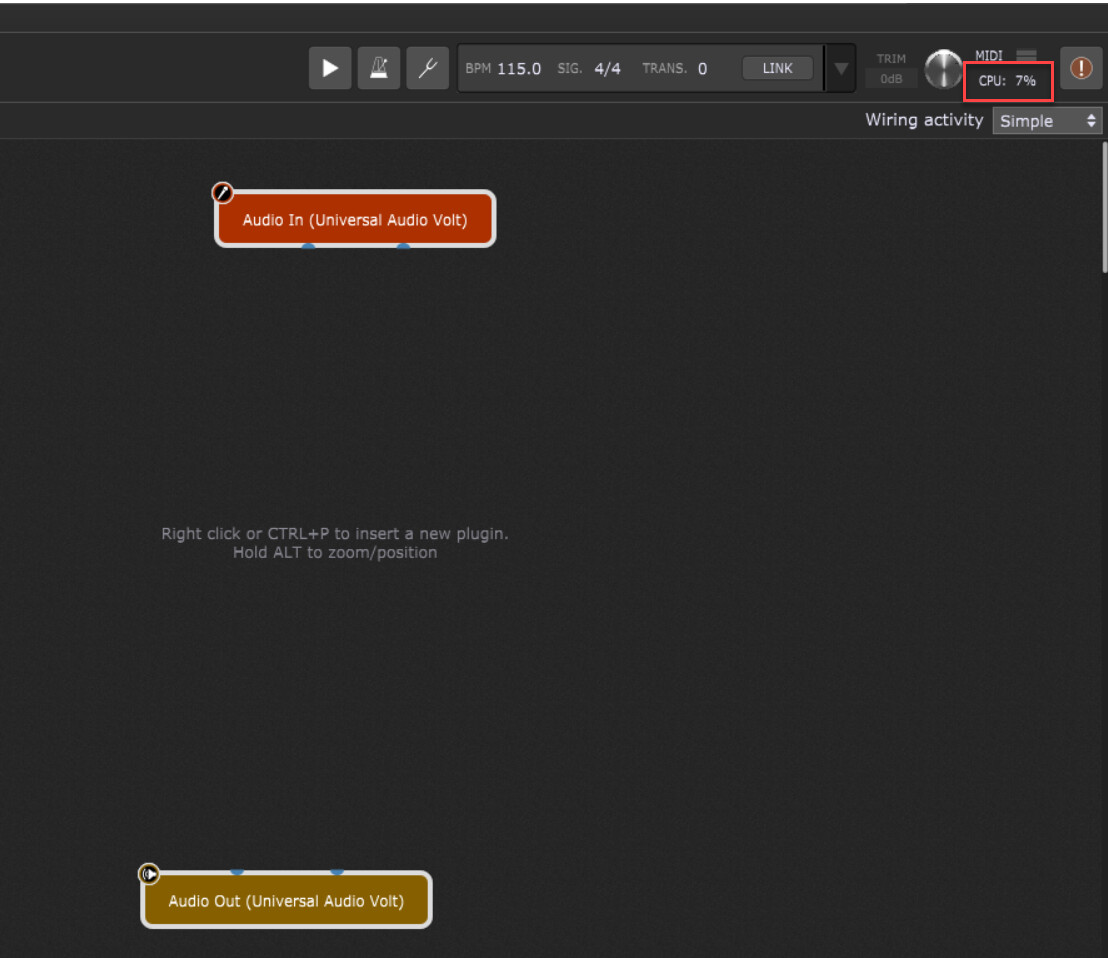
Just wanted to provide an update that I’m testing on a different laptop tonight. Specs are: Intel Core i7 2.80GHz 4-cores 8-processors; 16GB RAM; 500GB SSD. This is slightly “faster” than my Zbook at 2.4GHz. Same audio interface, same audio driver, same Gig Performer installation, same plugins, same GP file. A “blank” rackspace is still showing CPU at 7%.
Same problems with glitching, but I found that dialing back the polyphony in the CS-80 patch I was testing, as well as turning off effects helped significantly. At least with this laptop, no glitching occurs until 90% or more. Still not sure why my Zbook will start glitching at 40%.
I’ll look at power settings and power profile next.
Can you upload your gig file here?
My GP5.gig (2.7 MB)
You have a Piano v3 plugin in the Global Rackspace that isn’t connected to a MIDI In block. What happens when you remove that plugin? Do you go back down near 0% with your Blank rackspace?