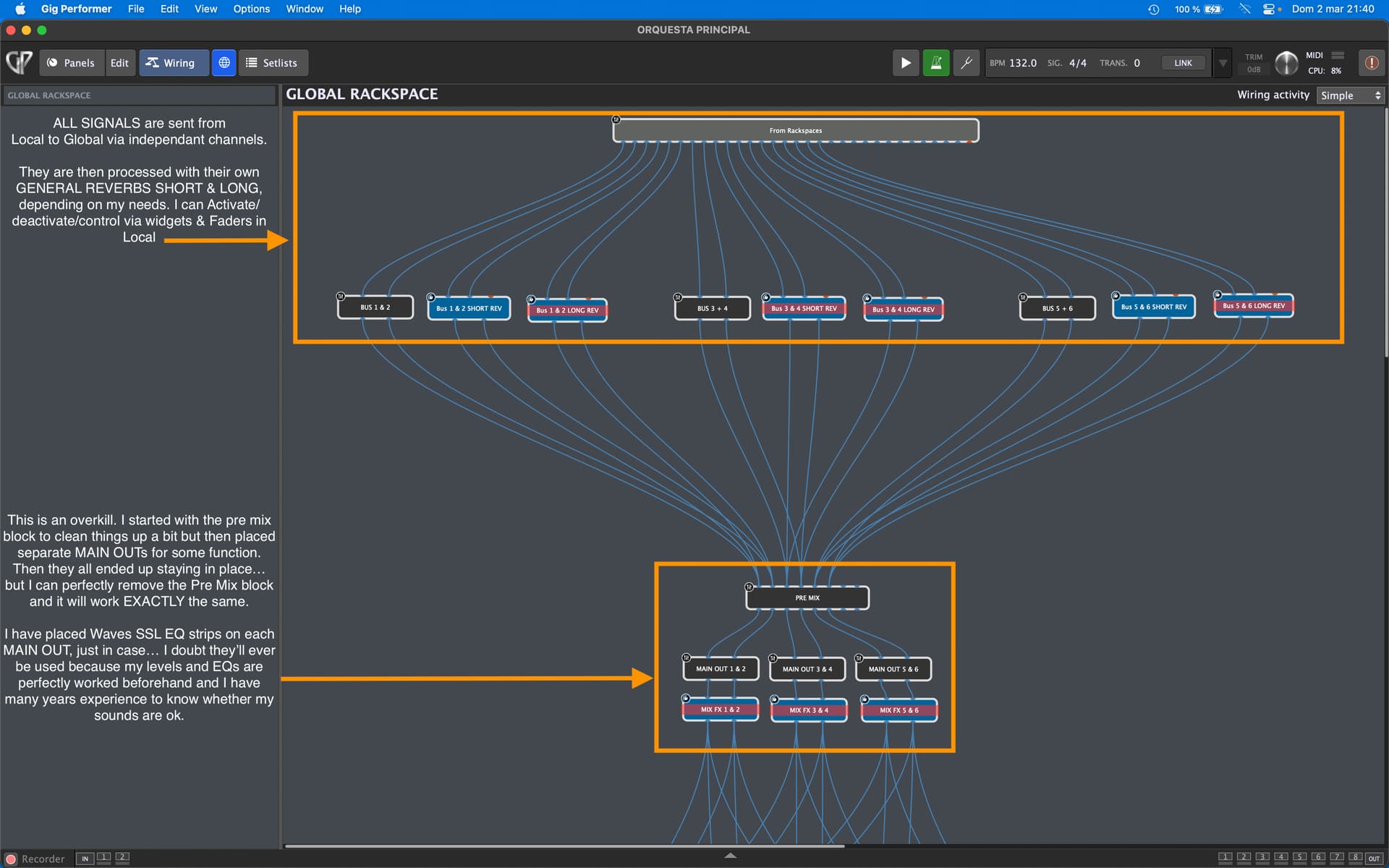
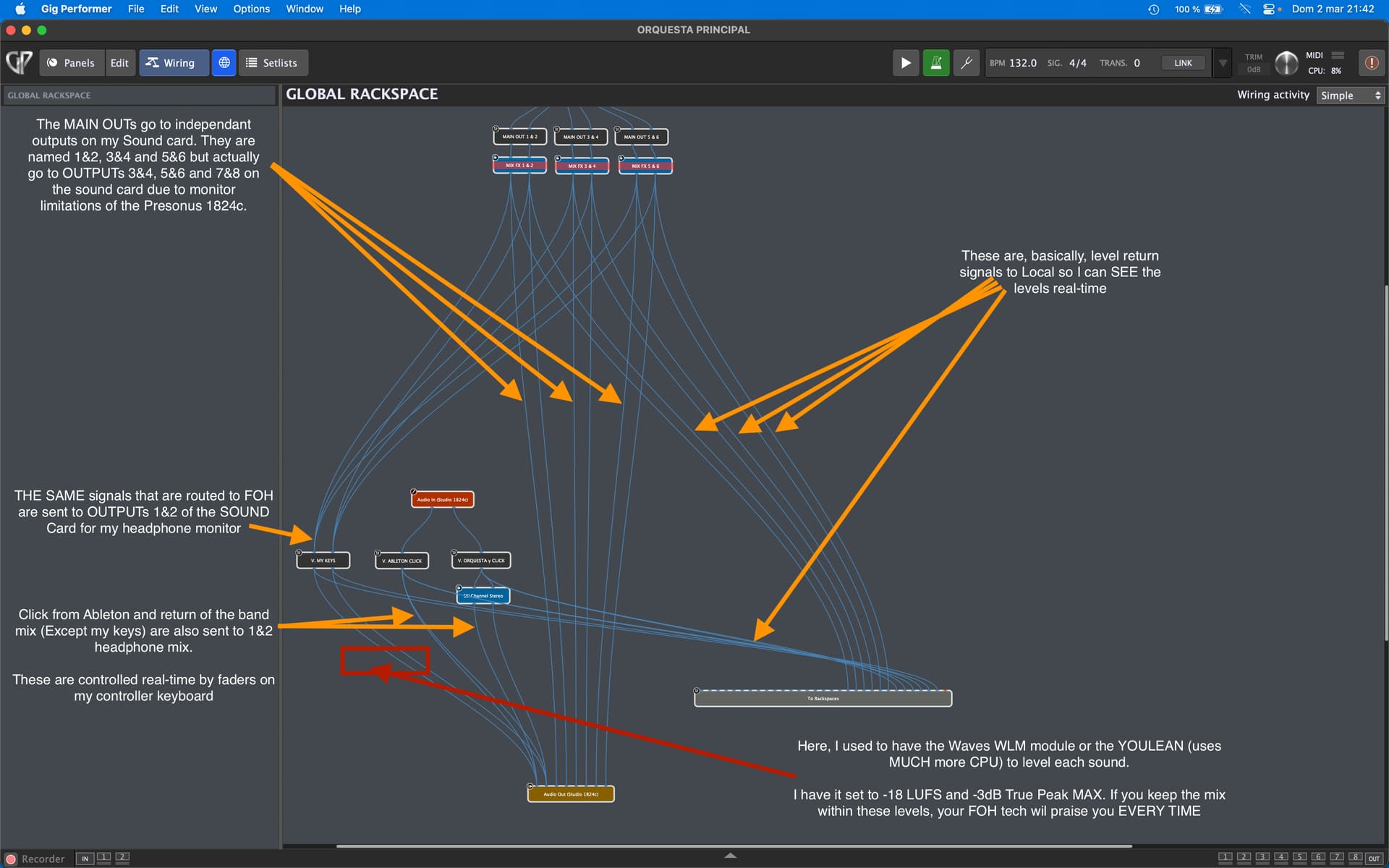
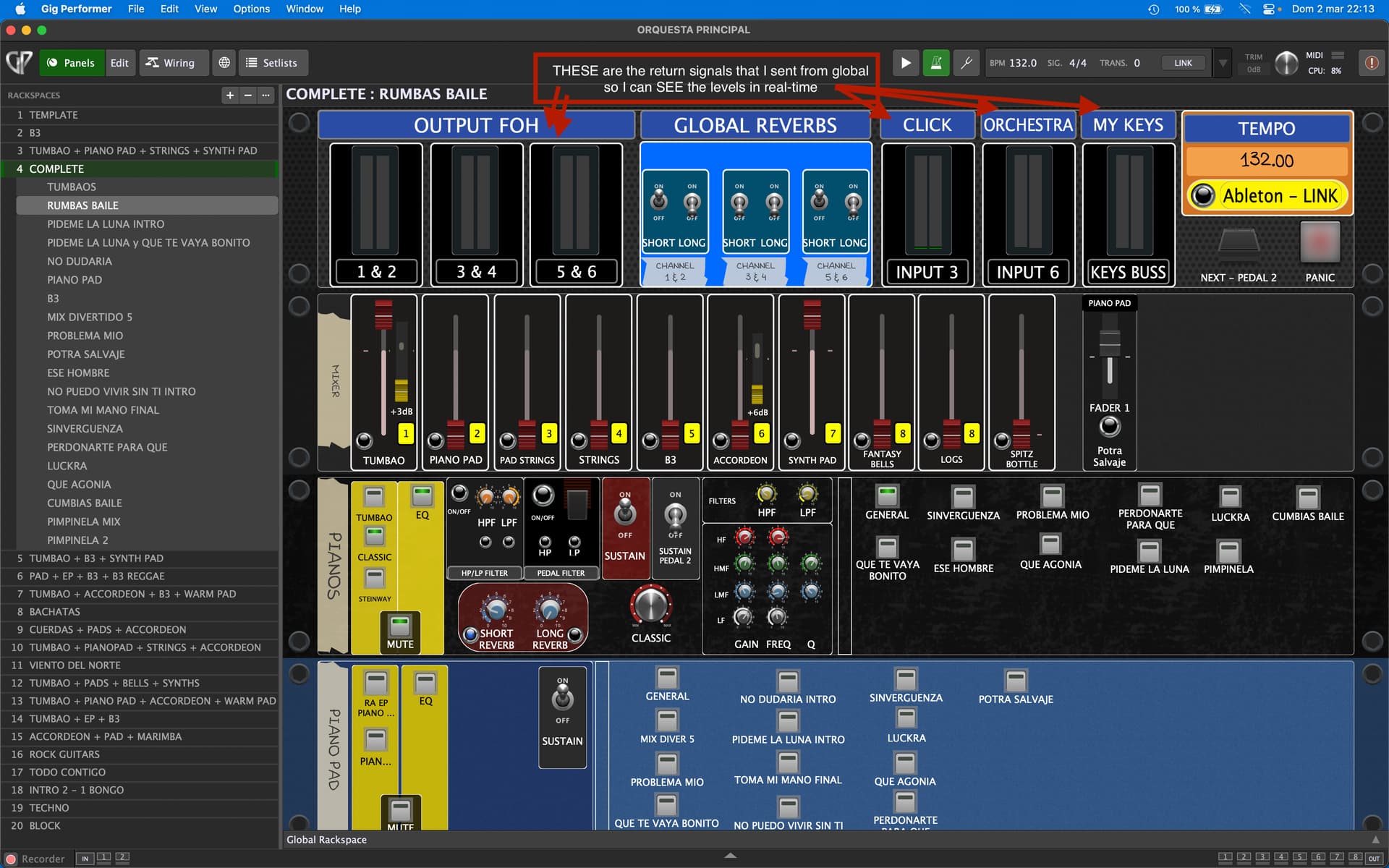
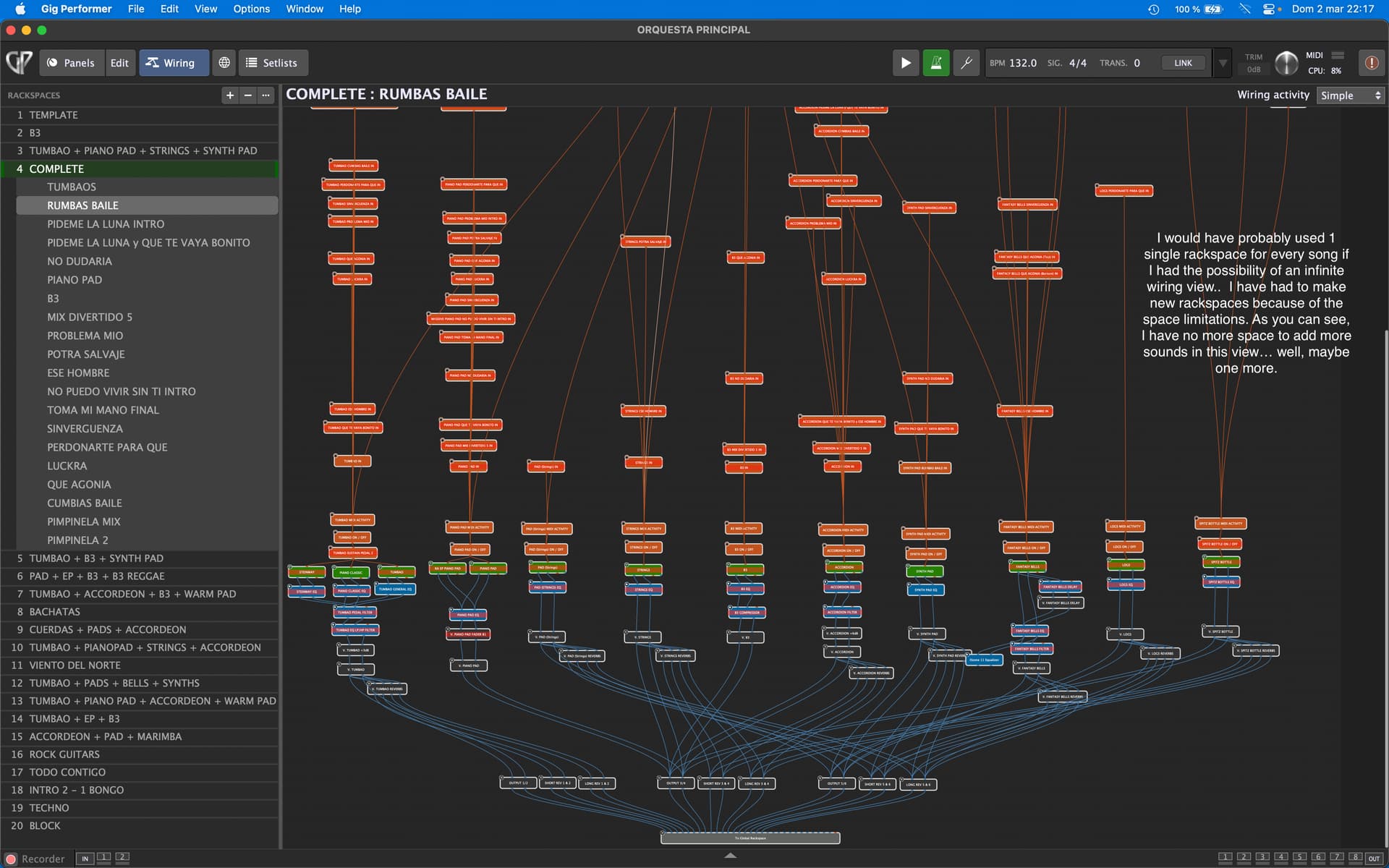
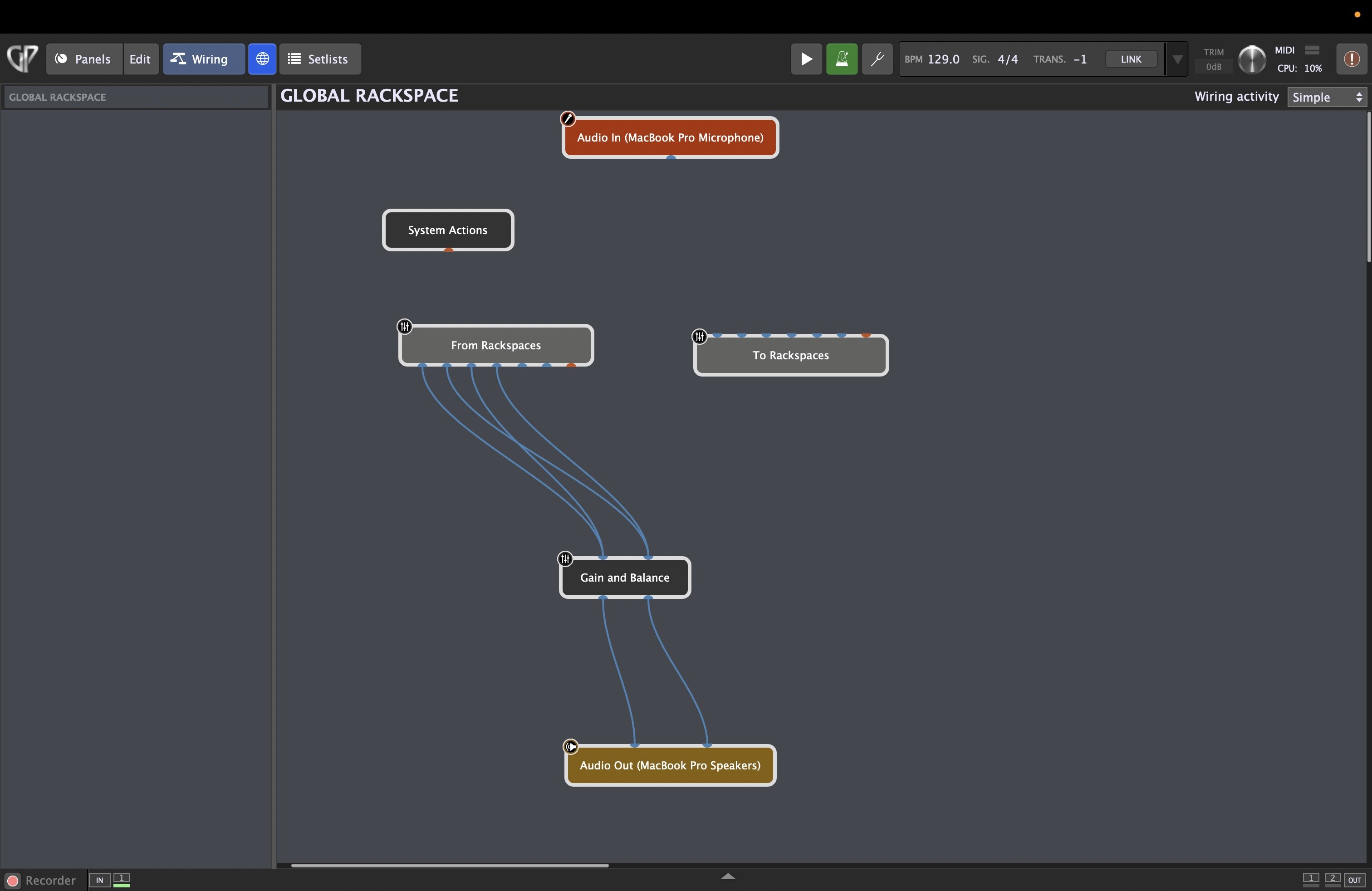
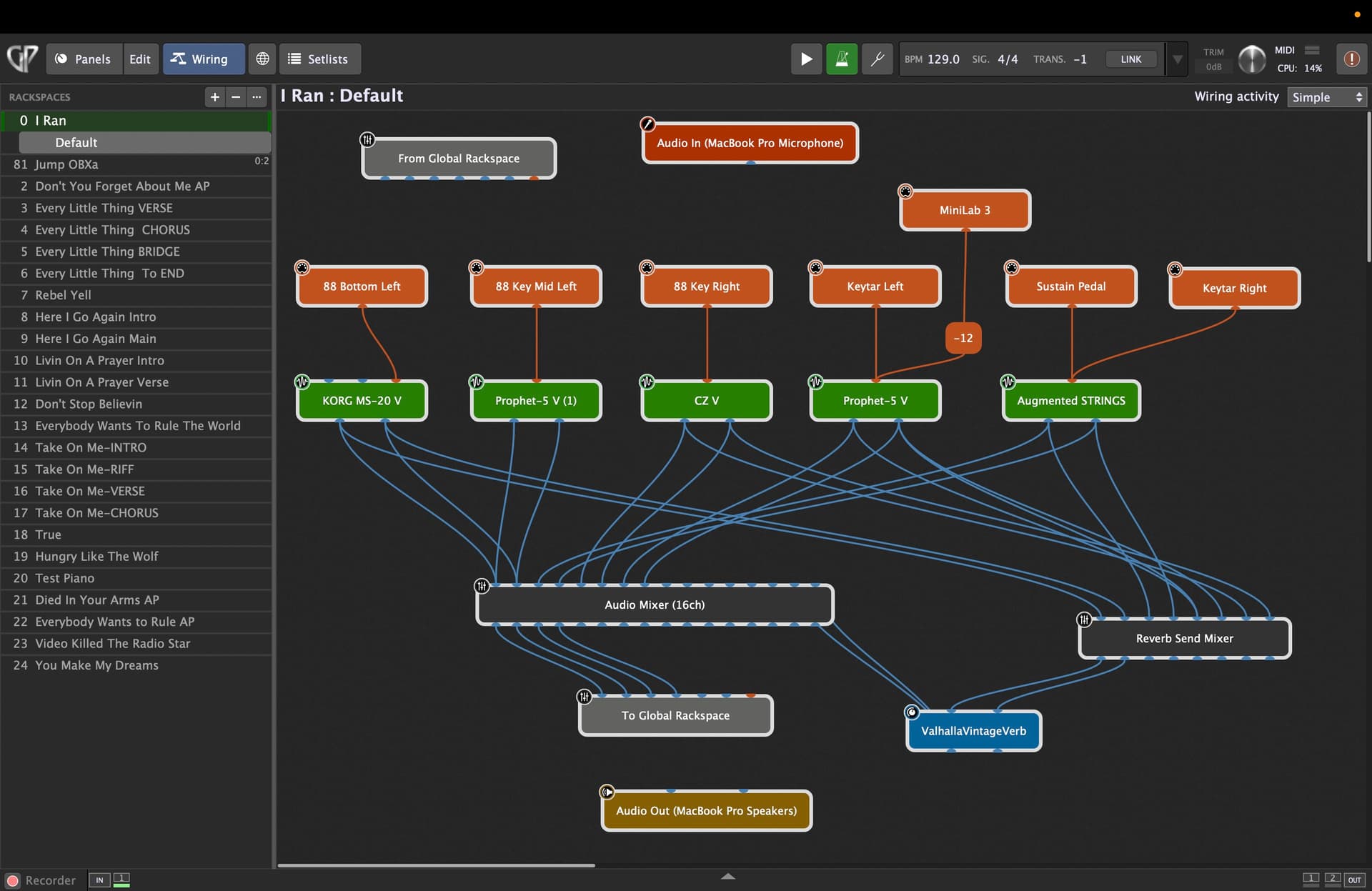
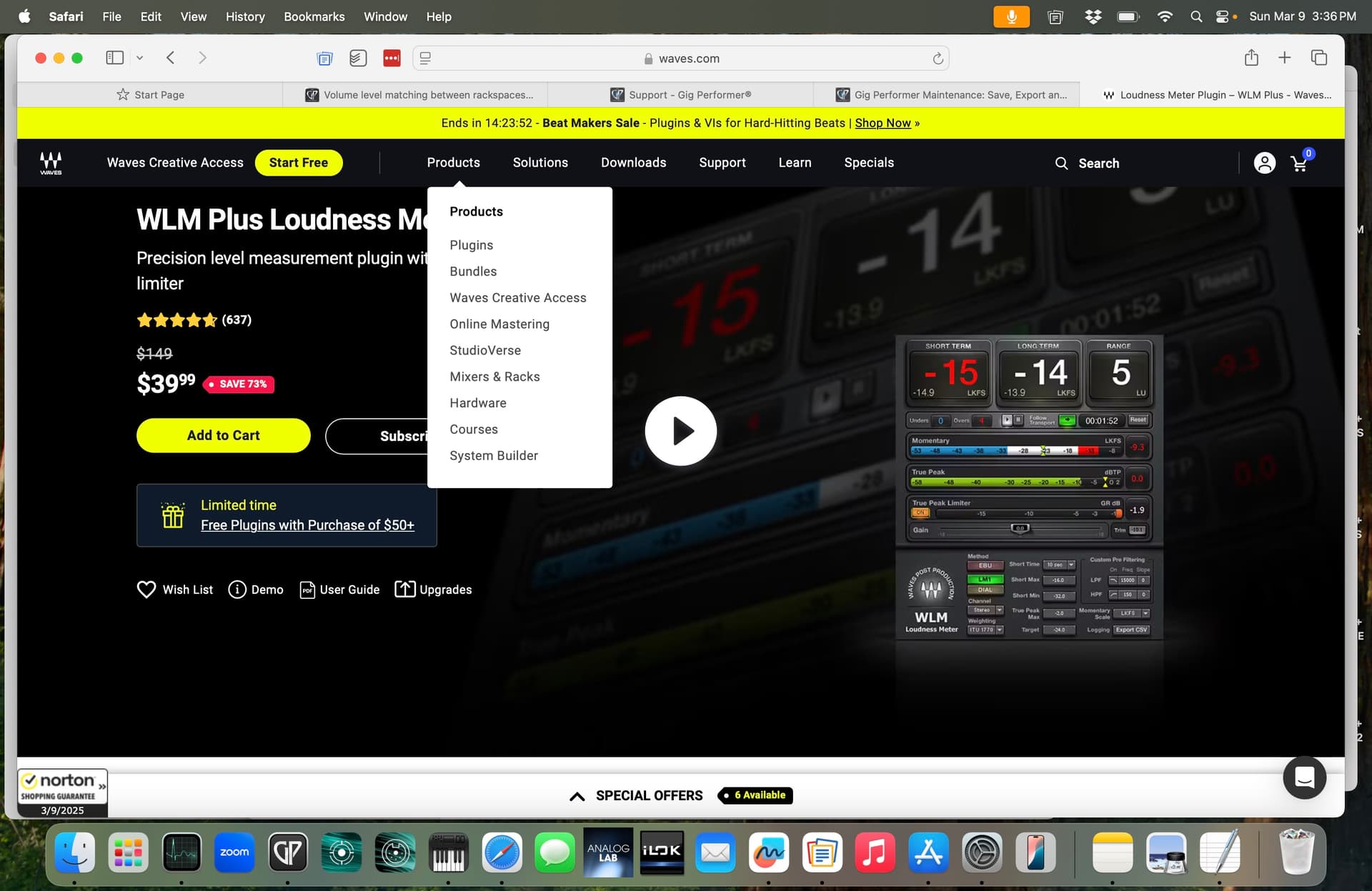
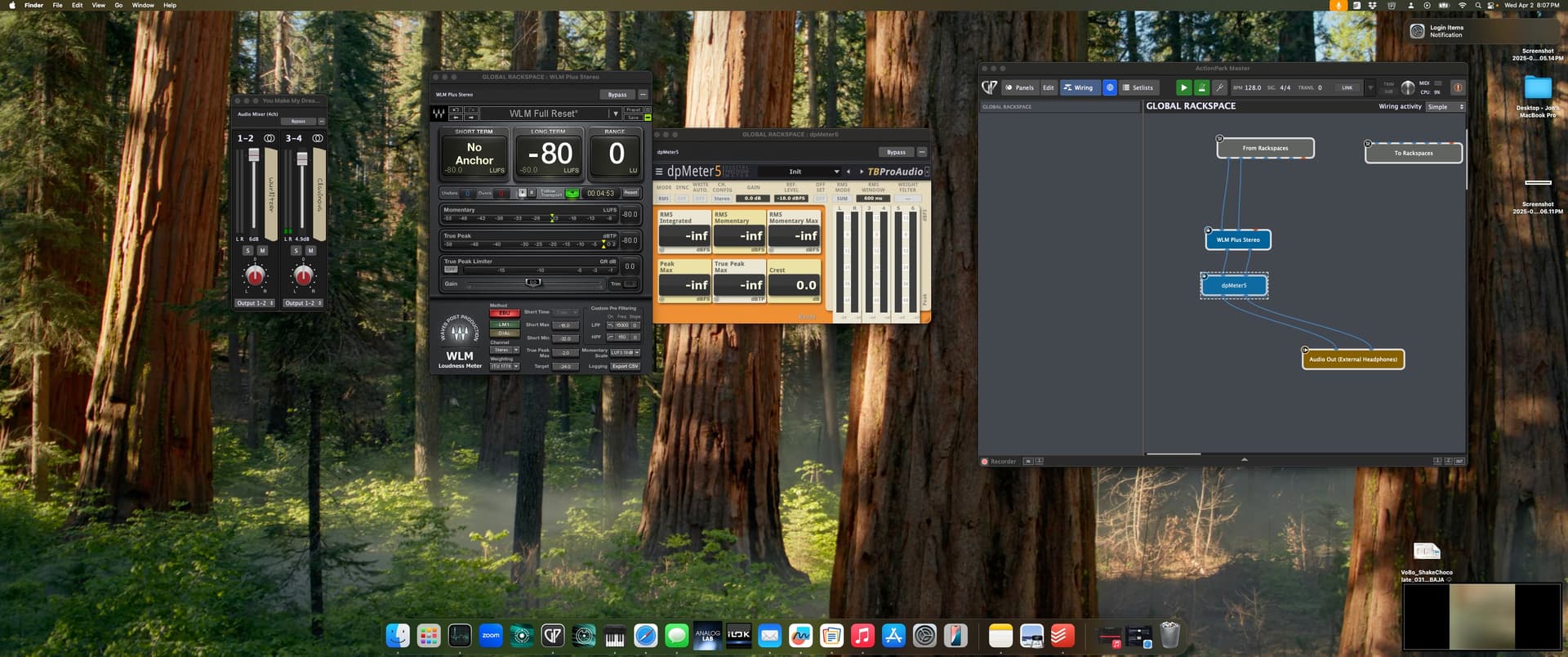
Here’s an update with screenshots. @jweisgal
I hope this helps a bit. If you’re still unsure, just get back to me. 
Here’s an update with screenshots. @jweisgal
I hope this helps a bit. If you’re still unsure, just get back to me.
a year later, I swapped all those plugins for just 1 Waves WLM module in Global.
all this is amazing and able my expertise - Im not sure what to do first - I just want to have a clean set up - I was supposed to keep a separate line for my vahalla reverb - and I dropped a gain and balance in there as well (don’t think that’s necessary) - I want to have a single volume knob on my controllers that can cover the volume live (in case I need to turn it down or up) - and then take notes and come back to managing the sound within GP so I don’t have to worry about it when I play live again… here are my screen shots… (also is the WLM loudness plug in the one to buy? - also attached).
Sorry, @jweisgal … I’ve been away these days and was completely disconnected.
Ok. The WLM is the one I use because I find it’s pretty accurate and does the job. There are many others out there and some are free… but I have also found them to be fairly more CPU intensive than this one.
I have the 6 reverbs in GLOBAL (Basically, because I have 3 stereo outputs and each one has a short and a long rev) and I send all LOCAL RS reverb send via the “To GLOBAL” Block.
If a sound needs a specific reverb type OTHER than the generic reverb in GLOBAL, then I will insert it in its specific instrument chain. Otherwise, I use the same reverb for all sounds and have a widget to control the send amount, length etc for each sound group. i.e… if I have pianos, mallets & accordions going through outputs 1&2, they will ALL share the same reverb for that specific RS.
IF, the accordion were to “need” a specific REV for a certain song, then I will close the GLOBAL reverb send of the accordion and insert a specific rev in the accordion chain JUST for that song. I can activate it just for that song and have it bypassed for all other songs.
I also have knobs/faders on the controller keyboards so I can adjust specific volumes at certain times IF I were to need to do so… but I have never come across this need for now. What I also have are 3 knobs for specific volumes that I usually adjust at the start of the gig and forget about them for the rest of the evening. 1. Click track, 2. Band mix return, 3. My keys mix.
Can I see your global rack space set up or Waves? Not sure where to start
This is probably not helpful, but I try to keep it simple.
I just run through my setlists at home as much as I can and try to adjust songs/songparts/individual plugins to get the right mix and levels between songs.
Then during rehearsals (or even a gig), I try to note if something is off and tweak the setting (I’ll make a note to myself to lower or raise a plug in or every plugin in a song one or two “notches”).
If I am adding a new song to a setlist, I try to compare the volumes to long existing songs to get the right levels. (So, the default is presumption is to change volume(s) of new song(s), rather than a bunch of existing songs.)
I am probably a caveman compared to other people. But, that is what I do.
Jeff
Yes, it’s very helpful
This is exactly what I’m doing right now - in my home studio I go through every rackspace and adjust volumes in the rackspace (before passing anything to global) to balance as best as I can.
I attach a widget to the fader of each mixer channel that I need to control so that I can do everything from a panel and not have to open mixer plugins.
It’s really not that hard to do but it is time consuming.
Yep, I connect every mixer channel I am using to a fader widget (with the monitoring lights).
Here is another pitch for Joey’s amazing 6-Channel Mixer Template (I just use the widget panel, without using the rackspace): 6 Channel Template
I don’t know if I copied the idea from somebody else or came up with it myself, but it’s the basically the same as the above two comments.
In my (non-global) rackspaces the last thing all the signals go through is a mixer. I generally use a 16 channel mixer (8 stereo pairs) that isn’t actually “mixing”. It’s just set up as a gain/balance control for 8 stereo pairs. (Each pair of inputs routs to its own pair of outpust).
Those come out of the mixer and go to my global rackspace. The two purposes of that mixer are to 1) adjust relative volume levels between the different sounds from different VSTs, and 2) get the overall volume level roughly across rackspaces before they sounds go to the global rackspace.
In my global rackspace I use Melda’s free MAnalyzer or MLoudnessAnalyzer plugin to check volume levels.
When I create a new rackspace I use the MLoudnessAnalyzer metering to guide me in setting the “mixer” levels in my local rackspace to the right ballpark.
Another caveman here that thinks this is the way to do it 
I think I’m all caveman in - I do like the wlm meter which I think if read right can give you a good feel of true volume - but it’s above my pay grade
Do any of you have a screen shot of your diagram and set up with your explanation?
Hi @jweisgal . You have my global wiring view above.
I have explained all as simple as possible, I think. I’m not sure how to simplify my explanation, tbh.
I use set list mode. (Note, some of the posters do not seem to use setlist mode. So, they do the same thing for each rackspace variation).
If I posted an image, all my image would show are the songs in each set list as I play through them and adjust volumes.
Then for each song part, the widgets would be displayed. I suppose that would be a separate image too.
This video should help: https://www.youtube.com/watch?v=GXToa8x3Zd4
This thread (below) discusses, and provides a link to, the widget panels I use. (I do not use the rackspace, I just use the widget panel on pretty much every rackspace I create. But if you are starting off, maybe it makes sense to use Joey’s rackspace too(?)):
So, I connect a fader to the (right and left) volume of for each channel of the mixer in my rackspace. I also connect the lights (virtual led indicator) to each mixer channel. (Lately I have been adding a bypass option to each MIDI In Block (but see posts why midi event filter is a better option if you have a problem with hanging notes when changing variations)).
Then when I run through the each song in a setlist, I use the “snapshot” feature to save the mix for each song part.
I am not so strong in learning from reading manuals. So, the youtube videos were a real help for me.
So, if you are like me, I would watch as many videos as you can on the youtube Gig Performer channel as you can, while being aware some of them are older and deviate in various respects from the current version of GP. (Then I even went back and tried various seteups while watching some videos (stopping and starting as needed).
Jeff
You did everything right in that screenshot and yes, it’s giving you an indication of loudness. Not sure why wiring confuses you, just put the thing where you want to measure output. Like you did.
Then you have several indicators with numbers. The first one is short term - ie what you’re playing right now. The second one is long term - over the course of measurement (say, a song - press the little Play button below to start the measurement, reset when done - this will show you overall loudness of a song). The third one is the difference between the softest and loudest parts of a song - if you’re playing some super compressed stuff like heavy metal it can be 4-6, if it’s something more organic then 10 or something - really depends on the material.
Then you have momentary indicators, they aren’t very important here, you have normal levels for that, so you can ignore them for now. True peak level is only relevant for mixing and mastering. Leave the bottom stuff at defaults. Just pay attention to the top three number things and the play/reset button.
I think by default target loudness in wlm is 16, so when the measurement goes above 16 it becomes red. It doesn’t really matter in this case what the target is, just pick some number/keep the default and that will be where you want different songs to be in general, it’s your reference point. The idea is that your long term loudness should be around this number. So your short term measurements can go 1-2-3 db higher than that during a loud solo, be at 16 during chorus and go 1-2-3 db lower during quieter verse. Again, how louder or how quieter depends on what you’re playing and your taste, so if you’re unsure just add an instance of a media player in GP, load a song that you really like how it’s mixed, press play in WLM, run the song from start to end, and see how its long term loudness measures, where short term loudness lands during louder/quieter parts, what’s the range overall. Then use similar values for your own level matching.
Oh, and if you’re only using it for individual sounds, not songs, you only care about short term loudness. But the same logic applies. Just use some target (say, 16, it doesn’t matter) for normal sounds, for louder solos go 17-18, etc. Or better yet, run a backing track through wlm, set levels for your sounds so that they match well, turn the backing track off and see what loudness you have for your sounds. That would be your target.
Hope that helps.
This does help - thanks so much (I run sound for my band - the last thing I need is to worry about me!)
Good luck, but just remember that these meters aren’t magic, they can help get in the ballpark and save time, especially if your monitoring situation isn’t great, but you still need to use your ears and check. And if this is for live sound, you need to check at loud volumes since perception of frequencies is very different at high spl levels - everything will sound much brighter.
Id like to have the WLM meter in a rack space to adjust for levels live if need be - what parameter do I select and what is the easiest way to make sure the vertical meter is connected (im asking that part because I dont see it moving up and down) - or I am also using mv Meter for total measurement - just want to visually make sure im hitting the right levels.
What’s a vertical meter?
It doesn’t matter where you put it, the principle is the same
I want to see the limits in my rack space when Im playing