So that’s the perfect behavior you are looking for appart that you would like to reverse the Note Block with regard to the LP and GP buttons state, right ?
Exactly
So, now you theoretically simply have to enable the “invert value” option in Value tab of the widget properties. What happens then ?
That inverts the light on the widget only.
Now when note block is on the widget light is off but the LP light is still on. So the lights operate opposite of one another.
But as far as the LP is concerned it is still LP light on when note block is on and LP light off when note block is off…
OK, I will have to try that on my surface control. In the meantime, could you please disable the “invert value” option and rather rescale Min=100 Max=0 to see if it behaves identically?
Now, when I press the widget, light on, note block off. Widget light off, note block off.
And the widget controls the LP light accordingly.
However, when pressing the LP button, it has lost its latching feature. If I I hold it down I get light on, note block off. When I let go I get light off and note block on.
I think you need something similar to “local off”.
So the light is only controlled by incoming midi and not by the pad itself.
I don’t think that is possible with the launchpad mk2
Or Latch Mode.
Do you have a software to configure your Launchpad?
Not for the mk2
Do you have an iPad?
No…
So we found something that a script won’t fix?
I will just remember, Dark Bulbs.
Let me think:
You press a pad
it sends out for example CC47 value 127
The widget goes on and the channel is not blocked.
You release the pad
it sends out CC47 value 0
The widget goes off and the channel is blocked again.
But you want this
Press the Pad and when you release is should stay on
You press again the Pad and then it should go off
As the launchpad can not be configured this way, we have to use scripting.
With Sync enabled the CC47 with value 127 (as you pressed the pad) should be sent back to launchpad.
This will work, BUT(!) as soon as you release the pad the light goes off and CC47 value 0 is sent.
Scripting can not influence the physic (in this example your thumb) on the launchpad not to release the pad 
The only solution would be that scripting would send the received message some time later as it received the message.
So scripting should know you released the pad and it activates it again.
Maybe send the message back after 1 second when it is received
(so you should release the pad shorten than this 1 second).
But this is a completely tricky and dirty hack - but could work.
I think I will leave it like it is.
Can you write me a script for this behavior?
Here it is
Pad_Delay.gig (8.1 KB)
And this is the script, you have to set your CC number and in the used MIDI Out Plugin you have to set your Novation Launchpad Device
Or you simply replace the MIDI Out Plugin by the Novation Launchpad.
And you have to MIDI learn the Button Widget.
//$<AutoDeclare>
// DO NOT EDIT THIS SECTION MANUALLY
Var
   S88 : MidiInBlock
   CC22 : Widget
   cm   : ControlChangeMessage
   delay : double
//$</AutoDeclare>

initialization
 cm = MakeControlChangeMessage(22, 127)
 delay = 1000.0
end


// Called when a widget value has changed
On WidgetValueChanged(newValue : double) from CC22
 if newValue == 1.0 then
  SendLater(S88, cm, delay)
 end
EndBy the way, did you buy Gig Performer?
This script is my last try, when this is working it is OK, when not then please consider buying a Midi Controller where the pads can be configured in latch mode.
Not yet, but plan to. Might get a launchpad mini mk3 if I can confirm that I can switch the top and side buttons to momentary or latched. I would mount it off to the right side.
I could do what you want to do using my control surface and momentary buttons. But scripting is needed for that. My solution is a bit different from the one of @pianopaul. Here is the test gig file making use of controller button assigned to CC104 and CC105: momentary_buttons_control_note_on_block.gig (41.7 KB)
It is based on the following GPScript:
Var
   ControlSurfaceOut : MidiOutBlock
   ControlSurface : MidiInBlock
   BUTTON1 : Widget
   BUTTON2 : Widget

//Called when a CC message is received at some MidiIn block
//The CC numbers must be within the specified range
On ControlChangeEvent(m : ControlChangeMessage) Matching [104..105] from ControlSurface
  Select
    // Implements a "momentary to latching" conversion: each time the controller button is pushed, the assigned widget changes its state
    m.GetCCNumber() == 104 && m.GetCCValue()==104 Do BUTTON1.SetWidgetValue(1.0-GetWidgetValue(BUTTON1))
    m.GetCCNumber() == 105 && m.GetCCValue()==105 Do BUTTON2.SetWidgetValue(1.0-GetWidgetValue(BUTTON2))

    // When a momentary controller button is realeased the controller state is fixed according to the latching widget state
    m.GetCCNumber() == 104 && m.GetCCValue()==0   Do ControlSurfaceOut.SendNowExternal(MakeControlChangeMessage(104, ParamToMidi(GetWidgetValue(BUTTON1))))
    m.GetCCNumber() == 105 && m.GetCCValue()==0   Do ControlSurfaceOut.SendNowExternal(MakeControlChangeMessage(105, ParamToMidi(GetWidgetValue(BUTTON2))))
  End
End

// BUTTON 1 MIDI SYNC ///////////////////////////////////////////////////////////////
On WidgetValueChanged(newValue : double) from BUTTON1
   ControlSurfaceOut.SendNowExternal(MakeControlChangeMessage(104, ParamToMidi(newValue)));
End

// BUTTON 2 MIDI SYNC ///////////////////////////////////////////////////////////////
On WidgetValueChanged(newValue : double) from BUTTON2
   ControlSurfaceOut.SendNowExternal(MakeControlChangeMessage(105, ParamToMidi(newValue)));
End
You need to right clic on the top MIDI in and MIDI out blocks to change the MIDI in and out devices to make them match your Launchpad device (this without changing their GPScript handle name “ControlSurface” and “ControlSurfaceOut”).
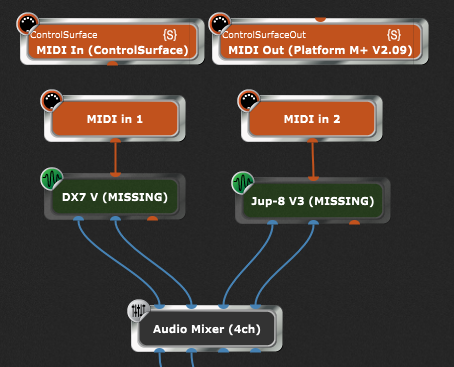
I used Arturia synths in this test gig file, you will have to replace these plugins by yours. The MIDI in # blocks are Omni in, which should be OK for testing purposes.
There is always a solution with GP.
Don’t really know how to go about using either of these. I see a place to enter a script under the advance tab for each widget button.