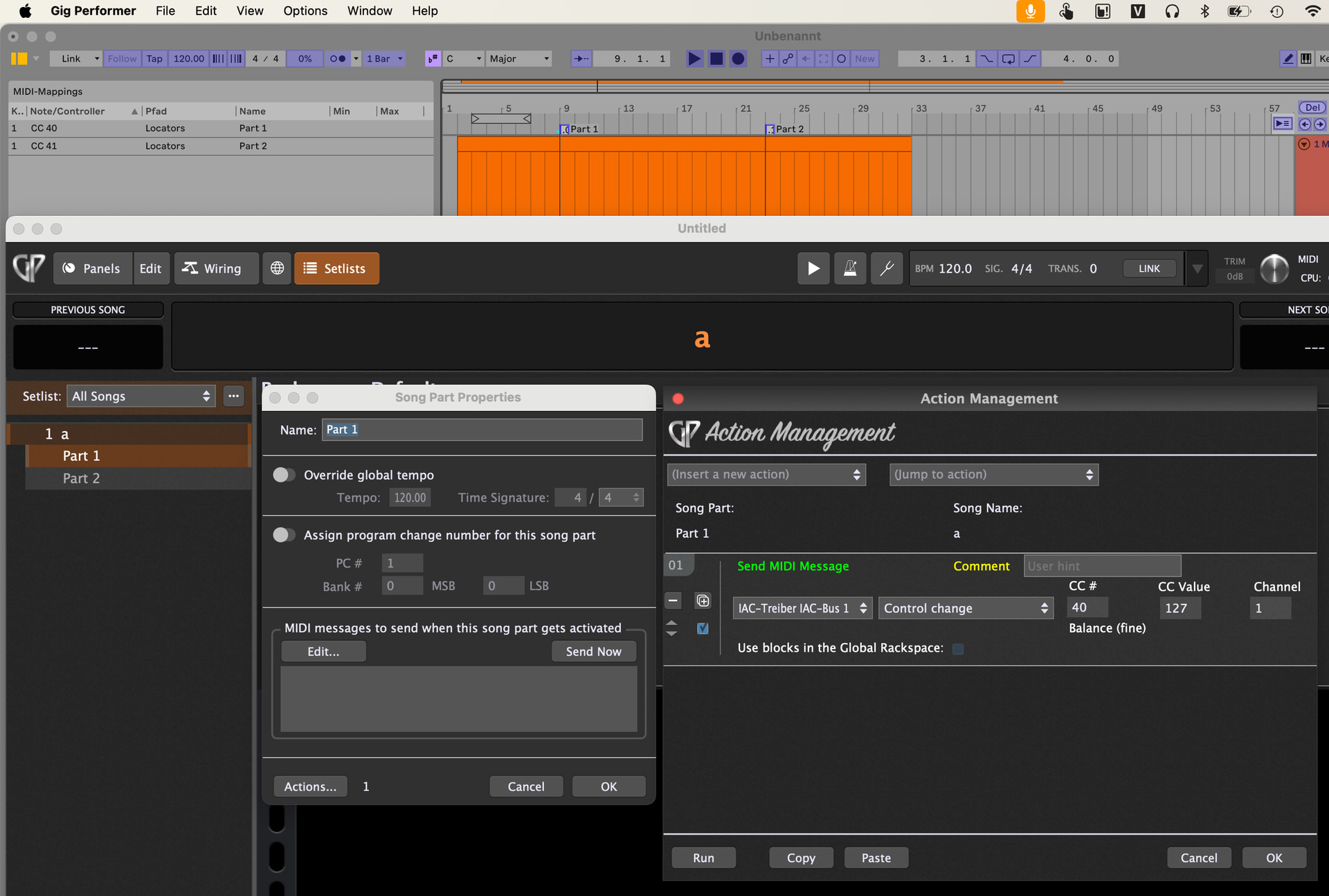
I have a project in Ableton of 22 songs (backing tracks) in Arrangement View (it’s more convenient for me for my purposes than Session view).
My midi-controller is Novation Launchkey 61 MK3.
I need to be able to select locators of the project to jump from one song to another - I can already do it by assigning CC messages to my pads and midi mapping them in Ableton. However, I’d prefer to use Program Change messages on my pads since the chosen pad is LED highlighted on my midi-keyboard when pressed (it would help me visually see which locator (part of my project) is currently selected.
Besides the need of using backing tracks in Ableton I’m using Gig Performer’s rackspaces as a keyboard player (each rackspace for each song with unique set of synths/samples). My Ableton project would die if I kept all my synths in the project! Gig Performer for the win!
Since Gig Performer by default allows us to change rackspaces via Program Change messages (Pad #1 - first rackspace, Pad #2 - second, Pad #10 - tenth etc.) - I thought it would be very convenient to combine the selection of Ableton’s locators with the selection of rackspaces. The only problem is Ableton doesn’t allow to map Program Change messages unlike CC messages or ON/OFF messages.
So, my question is - is it possible to use Program Change messages on my pads to keep the chosen pad visually lit and combine simultaneous selection of locators and rackspaces (and maybe Song Parts in the Setlists view)?
If so, how does one achieve that?
(Not sure this info is needed: I’m sending the backing tracks from Ableton to Gig Performer with GP Relayer plugins)
To have a visual representation of a linear view of songs (from left to right) - this way it’s easier to show my bandmates the visual structure of a new song (with colorful midi clips with names of song parts, length, instrument parts that are being played etc.) so that they can learn faster what needs to be learned + I’m just more used to working in regular DAWs this way and much more fluent editing my backing tracks whenever somethings needs to be changed.
when I understand correctly you want to send pc messages to gig performer to select a song and in parallel the desired locator in Ableton live should be selected?
Will Song Part Actions and virtual MIDI with sending CC messages let me get the desirable result? If so, what are the steps to follow?
I’m sorry, I’m not very experienced with that and don’t understand the whole process.
Ideally, I would want my pads to be working as Program Change messages so that the pressed pad on my Launchkey would be lit, thus indicating visually where I’m at Locators/Song Part-wise.
You need virtual MIDI on Windows.
Then select this virtual MIDI in the song part actions and send the cc message
In Ableton Live learn the MIDI message for the locator
@pianopaul the variant with virtual MIDI worked perfectly! I’ll try to sum up what I did in case it can be helpful to someone else (apologies in advance if I write some things inaccurately due to lack of experience):
1. Midi Controller.
For my Novation Launckey 61 mk3 I set up my 16 pads (in 1 out of 4 CustomPad Modes) as Program Change messages in my controller’s software Novation Components, so that when I select Locators in Ableton and at the same time Rackspaces or Songs in SETLISTS View the pressed pad is LED lit, letting you know where you’re at locator/rackspace/song-wise.
(Program Change messages make the pads select rackspaces in Gig Performer by default, which is also convenient for such purpose)
2.Other steps.
-Install loopMIDI on Windows 10.
-Open loopMIDI and create a dedicated virtual port named GP-to-Live(any other name would fine) 2.1.Variant A:Control via Rackspaces (to select both locators and rackspaces):
-Open the Wiring View of the 1st Rackspace.
-Insert a MIDI Out block namedGP-to-Live,which was created earlier (not just loopMIDI port which is also in the list of blocks)
-Double-click it, go to Other MIDI messages to send → click Edit below.
-Add a Control Change (CC) message: Channel 1, CC 20, Value 127(Value MUST be 127 for Ableton to register it as a solid button trigger, but Channels and CC can be different, I think)
-Repeat for other Rackspaces:**
Copy-paste the MIDI Out block to other Rackspaces. Changed the CC number by +1 for each new Rackspace (CC 21, CC 22, etc.), keeping the Value at 127.
The mapping process in Ableton will be described at the end below.
2.2.Variant B:Control via Setlists (Song View): Use this if you organize your gig using Setlists and Song Parts. Note: Wiring View MIDI Out blocks do not trigger on song changes, so we handle this via Song Properties.
In Gig Performer (Global MIDI): Go to Options → Global MIDI. Turn ON the MIDI Song select to PC toggle at the bottom.
In Gig Performer (Setlist Settings): Go to the Setlist tab in Options. Turn ON the toggle: “PC and Next/Previous MIDI assignments switches to Setlist view automatically”. Now your pads switch Songs instead of Rackspaces.
Configure Song Part Properties:
Right-click your 1st Song in the Setlist → select its Intro’s song part → double click into Song Part Properties.
Go to other MIDI messages to send.
Click Edit and add the exact same CC message: Device:GP-to-Live, CC 20, Value 127.
Repeat for other songs in the list (CC 21 for Song 2, CC 22 for Song 3, etc.), always keeping the Value at 127.
3.Mapping inside Ableton Live.
For either Rackspace or Setlists (Song View) mapping works the same way.
Enable Remote Input: In Ableton, go to Preferences → Link/Tempo/MIDI. Find your virtual input port (GP-to-Live in my case, which was created earlier in loopMIDI) and check the Remote box.
Enter MIDI Map Mode. (Top right corner in Ableton)
Map the Locators:
In Ableton, click the tiny gray box/arrow icon located in the scrubbing area directly above your first timeline locator flags.
Switch to Gig Performer and go into 1st Rackspace’sMIDI OUT block namedGP-to-Live andIMPORTANT! click **Send Now ! (without that it won’t map in Ableton!!!)
Do the same mapping procedure for Setlists (Song View) for the 1st Song.(click twice Intro’s song part → Send Now (without it Ableton won’t map to the locator!)
After that Ableton will grab the CC 20 trigger.
Repeat the same steps for the next locators.
A million thanks to @pianopaul for the help and instructions!