Este vídeo, apresentado por Marcelo Gesualdi, oferece uma solução para usuários do Gig Performer que têm dificuldade em alternar presets dentro de plug-ins VST que não possuem suporte nativo integrado, como os da Arturia e Roland.
Fluxo de Trabalho Passo a Passo:
Baixar o Modelo: Comece baixando o arquivo de projeto do Gig Performer compartilhado pela comunidade (Eric da Alemanha), que inclui um script pré-configurado para a troca de presets (0:15 - 0:43).
Configuração do Plug-in (Wiring): Na visualização Wiring, substitua o VST temporário pelo instrumento desejado (por exemplo, Arturia DX7) (1:00 - 1:11).
Salvar Presets: Dentro do seu VST, selecione os timbres desejados e salve-os como presets individuais. Certifique-se de que sejam salvos no ambiente do Gig Performer (1:11 - 1:37).
Configurar Widgets: Mude para o painel Edit para vincular seus widgets aos presets salvos. Você deve atualizar o campo Customize Caption na aba General para corresponder exatamente ao nome do seu preset salvo, excluindo extensões de arquivo (1:40 - 3:20).
Gerenciar Variações: Uma vez configurado, você pode atribuir diferentes presets a Variations específicas dentro do seu rackspace, permitindo trocas de som fluidas durante apresentações ao vivo (3:20 - 3:45).
Marcelo também explica que este processo é repetível para outros plug-ins, como a série Roland JV, bastando duplicar o rackspace e repetir os passos de atribuição (3:45 - 5:08).
English:
This video, presented by Marcelo Gesualdi, provides a solution for users of Gig Performer who struggle to switch presets within VST plugins that lack native integrated support, such as those from Arturia and Roland.
Step-by-Step Workflow:
Download the Template: Start by downloading the Gig Performer project file shared by the community (Eric from Germany) which includes a pre-configured script for preset switching (0:15 - 0:43).
Plugin Setup (Wiring): In the Wiring view, replace the placeholder VST with your desired instrument (e.g., Arturia DX7) (1:00 - 1:11).
Saving Presets: Inside your VST, select the desired timbres and save them as individual presets. Ensure they are saved within the Gig Performer environment (1:11 - 1:37).
Configuring Widgets: Switch to the Edit panel to link your widgets to the saved presets. You must update the Customize Caption field in the General tab to match the exact name of your saved preset—excluding file extensions (1:40 - 3:20).
Managing Variations: Once configured, you can assign different presets to specific Variations within your rackspace, allowing for seamless sound switching during live performances (3:20 - 3:45).
Marcelo also explains that this process is repeatable for other plugins, such as the Roland JV series, by simply duplicating the rackspace and repeating the assignment steps (3:45 - 5:08).
Este vídeo apresenta um setup de teclado híbrido (0:25) projetado para otimizar apresentações ao vivo, combinando teclados de hardware com instrumentos VST baseados em software. O apresentador Marcelo Gesualdi demonstra como integrar várias tecnologias para uma experiência de palco perfeita.
Componentes Principais do Setup:
Hardware: Utiliza dois teclados, o Fantom 06 e o MODX7 (0:27).
Integração de Software: Utiliza o Gig Performer (0:31) como hub central, executando múltiplas instâncias para gerenciar VSTs e comunicar mudanças de programa com os teclados (0:56).
Fluxo de Trabalho de Performance: Quando uma música é selecionada, o sistema aciona automaticamente os timbres corretos nos teclados e no software (1:31).
Integração Avançada:
MobileSheets: O setup sincroniza e exibe automaticamente a partitura correta para cada música (4:45).
TouchOSC: Fornece uma interface de tela sensível ao toque personalizada para acionar mudanças de timbre manualmente durante o show (5:30).
Studio One: Atua como um hub adicional para lidar com backing tracks e acionamento de VSTs (5:51).
O objetivo geral desta configuração é criar um sistema automatizado e confiável que permita ao músico focar na performance em vez de ajustes técnicos manuais (6:35).
English:
This video presents a hybrid keyboard setup (0:25) designed to optimize live performances by combining hardware keyboards with software-based VST instruments. Host Marcelo Gesualdi demonstrates how to integrate various technologies for a seamless stage experience.
Core Setup Components:
Hardware: Uses two keyboards, the Fantom 06 and MODX7 (0:27).
Software Integration: Utilizes Gig Performer (0:31) as the central hub, running multiple instances to manage VSTs and communicate program changes with the keyboards (0:56).
Performance Workflow: When a song is selected, the system automatically triggers the correct patches across both the hardware keyboards and the computer software (1:31).
Advanced Integration:
MobileSheets: The setup automatically syncs and displays the correct sheet music for each song (4:45).
TouchOSC: Provides a custom touchscreen interface to trigger timbre changes manually during a set (5:30).
Studio One: Acts as an additional hub to handle backing tracks and VST triggering (5:51).
The overall goal of this configuration is to create an automated, reliable system that allows the musician to focus on the performance rather than manual technical adjustments (6:35).
This video is a tutorial demonstration (in Portuguese) on how to program a setlist for church worship services using the Gig Performer software. The creator showcases how to organize sounds for the song Jeová Jireh by Aline Barros.
Key takeaways:
Workflow: The creator explains how to manage different instrument layers, such as balancing the volume between piano and guitar during specific song segments (0:22–1:31).
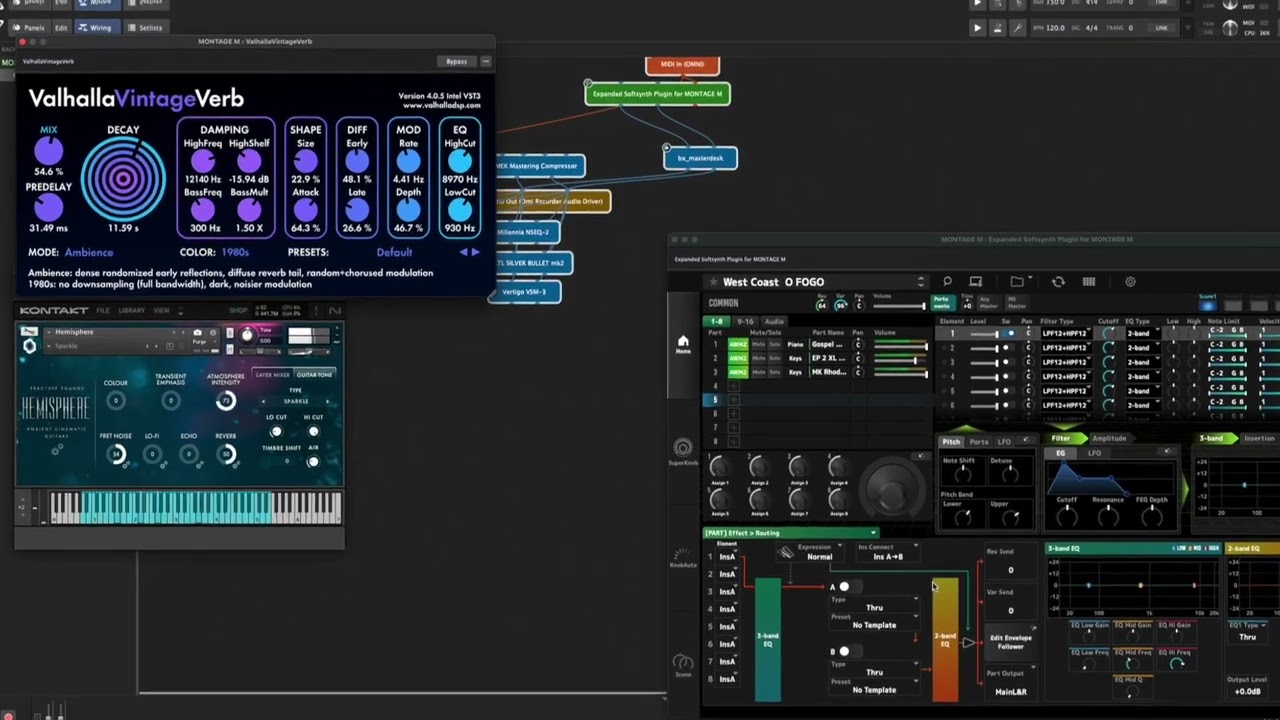
Technical Setup: There is a demonstration of routing audio signals from Gig Performer through Kontakt and into a Yamaha Montage workstation to achieve desired effects, like reverb (2:11–2:30).
Equipment: The video highlights the use of Gig Performer as a “multitool” for live performance and mentions a specific “EP Evans” piano kit used for the sounds (2:00, 3:00).
The creator also notes that they have a pre-made pack available for MODX and MONTAGE synthesizers for those interested in using these configurations.