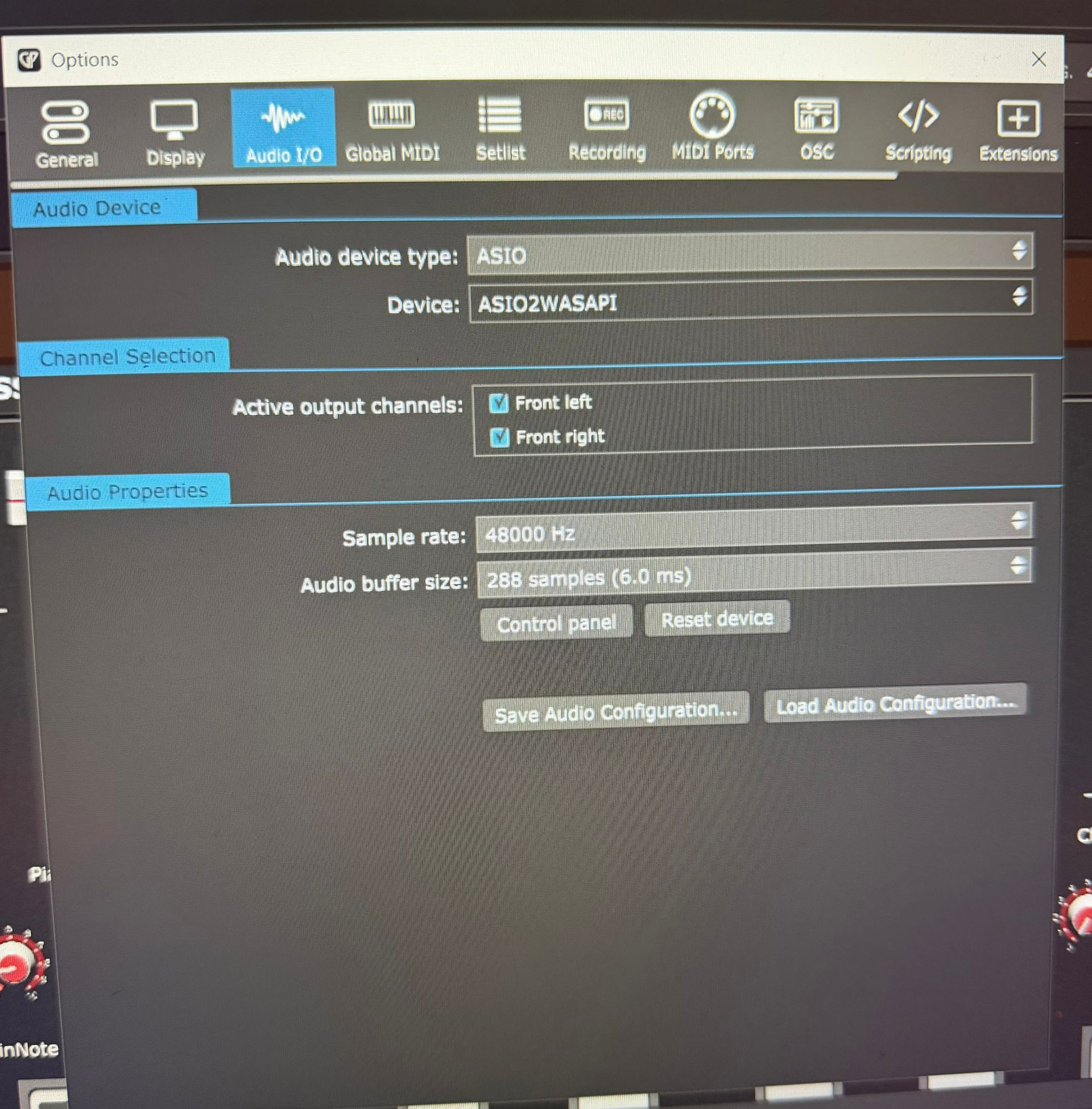
Just go my SL88 mkii to replace my Nord Stage 3 88 + MOTU M4 as a controller for GP and i’m trying to use the internal audio interface with GP for space reasons. i’m having a hard time adjusting the latency settings in GP. The keyboard works perfectly when connected to my windows 11 laptop via USB and using it with their Numa player app, with the audio driver set to Windows, exclusive mode, i get around 5ms. However, when I select the SL audio outputs in GP (windows driver) , i get some slightly disturbing latency that makes it way less enjoyable to play. I’m trying to get rid of my MOTU M4 at least for a low key weekly gig. I have disabled the laptop onboard Realtek and others. Actually, changing the audio settings in GP does not seem to change anything. Is there any way to force GP to use the audio interface exclusively like the Numa player apprently does ?
What are you guys getting as far as latency, and how did you go about setting it in GP ?
maybe i’m missing some Windows 11 audio settings ?
I really want to have that “light” package working with the amazing GP !
Thanks
Hi and thanks for your reply and your welcoming. I have been using GP 5 with my Nord stage and MOTU 4 just fine for a few months.I just had a crash and did a fresh install and also bought the SL88 mkii. Here are my GP settings and some device mgr views:
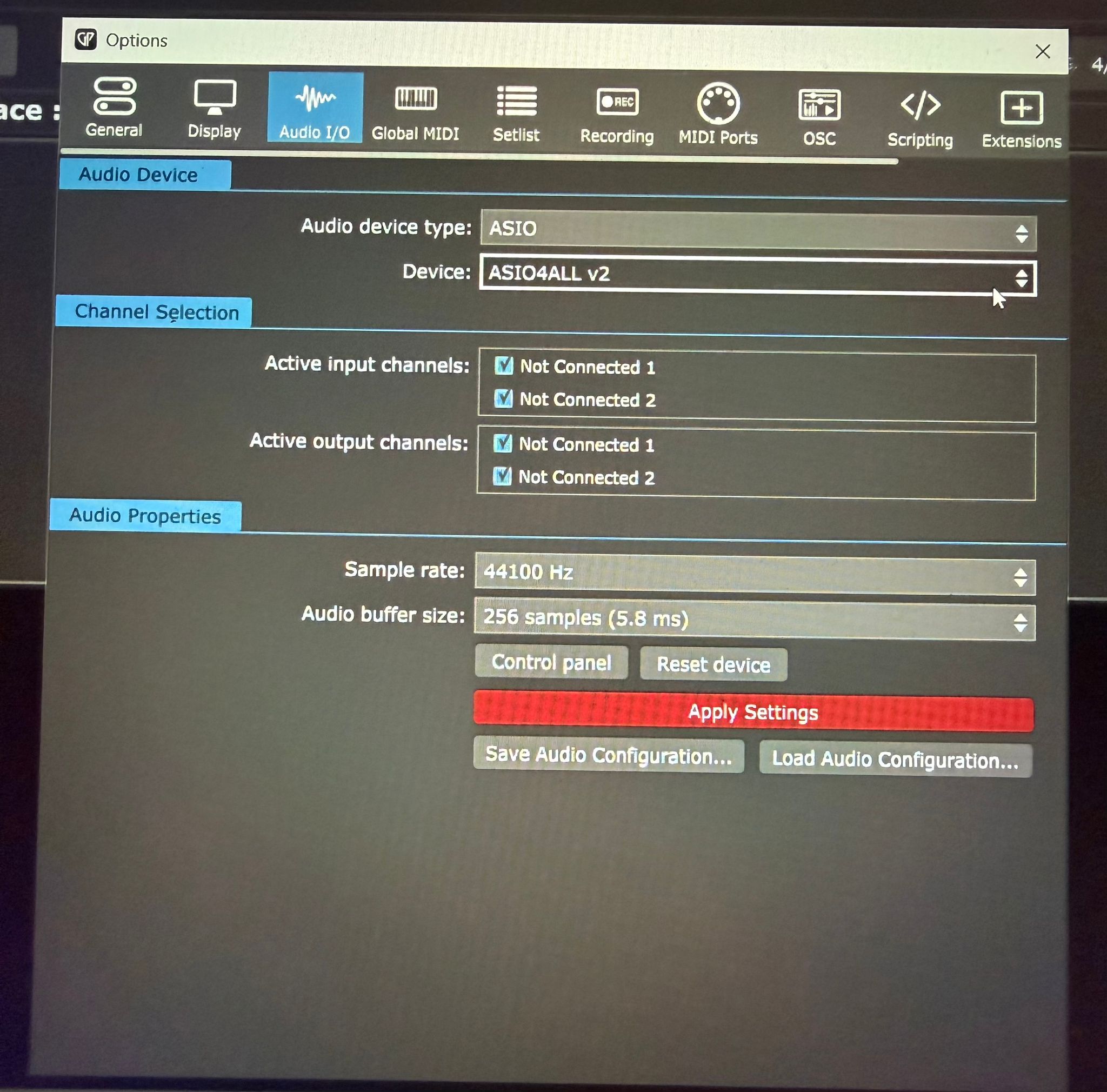
The Studiologic SL88 MK2 does not feature dedicated manufacturer-developed ASIO drivers for Windows, relying instead on standard USB MIDI/Audio class drivers. While the keyboard includes a built-in audio interface via USB-C, Windows users requiring low latency may need to use universal drivers like ASIO4ALL.
I remember reading somewhere that ASIO4ALL does not support audio over usb.
I tried it anyway and the SL88 does not appear as a selectable device…
I still don’t understand how Studiologic manage to make the same software and hardare setup combination work perfectly (smaller latency, they use the windows driver in “exclusive mode”) when playing with their Numa Player app…
It seems that this built-in audio interface is not for professional use on Windows, due to lack of the dedicated ASIO driver.
According to Google, people had more luck with ASIO2WASAPI than with ASIO4ALL, but all of that is simply workarounds. You can try this at home to have something to play with, but is definitely not for professional use.
This driver worked really well, thank you !!
Here are the settings that worked for me if it can help anyone wanting to use the internal audio interface of the Studiologic SL88 mkii on Windows 11 with good latency.


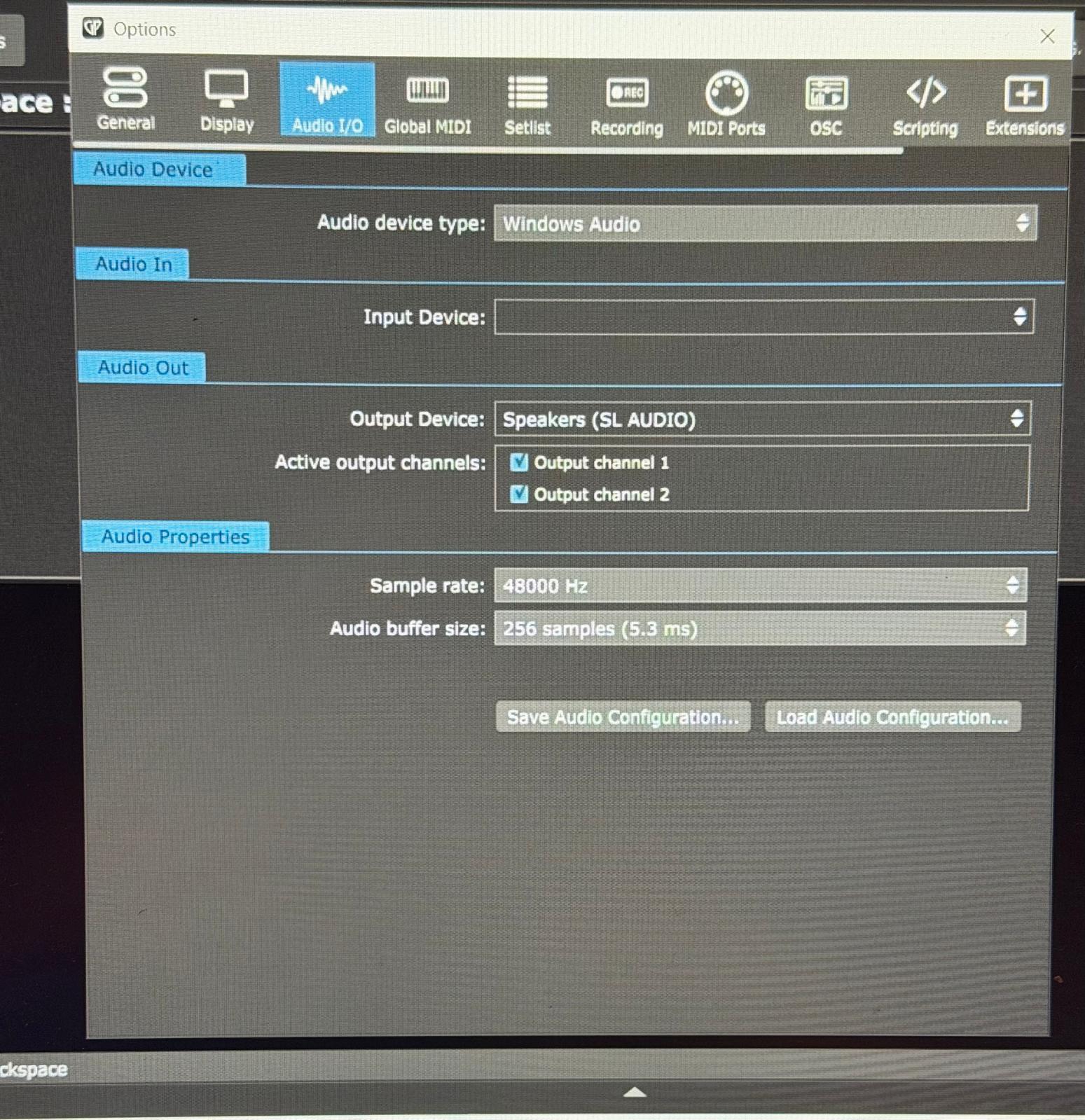

 Install ASIO2WASAPI
 Configure Windows First (Important)
 Set Driver in Gig Performer
 Configure ASIO2WASAPI Panel
 Test & Optimize
 Home practice → ASIO2WASAPI is fine to try
 Live performance → I would strongly recommend a dedicated ASIO interface