How to make a shape widget as a on/off (or bypass) toggle?
I think this it the type of thing where a second widget with alpha set to “0” is used?
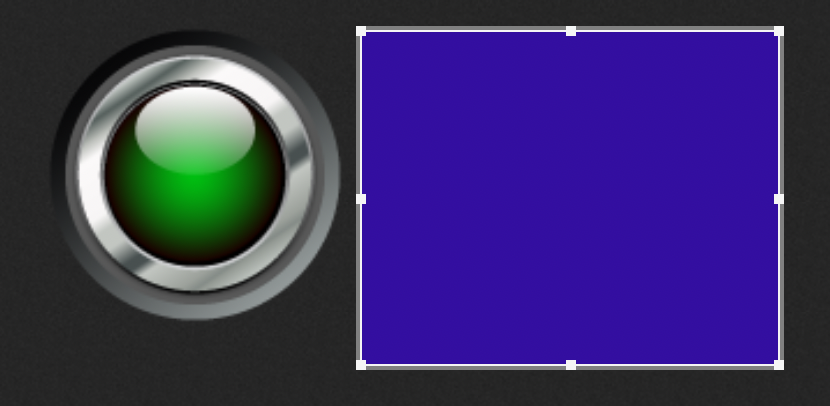
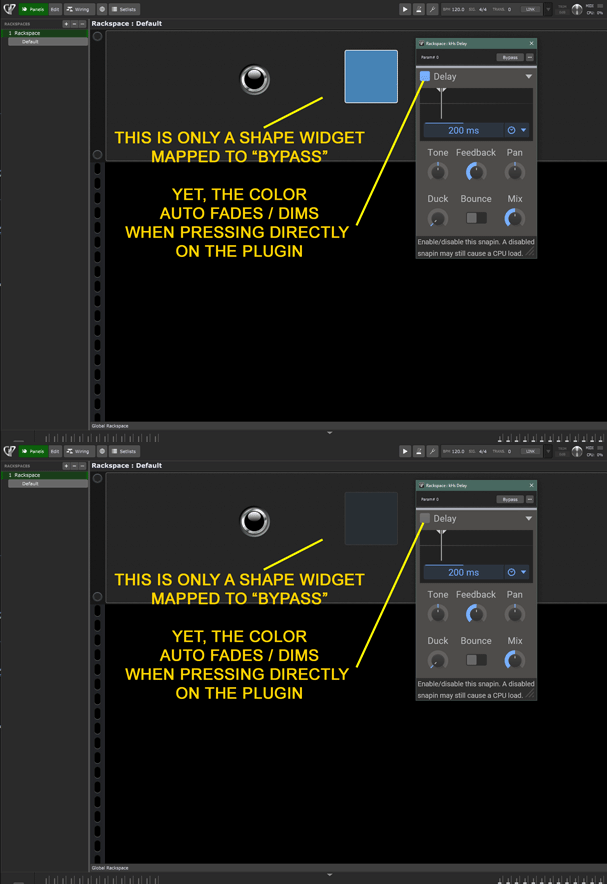
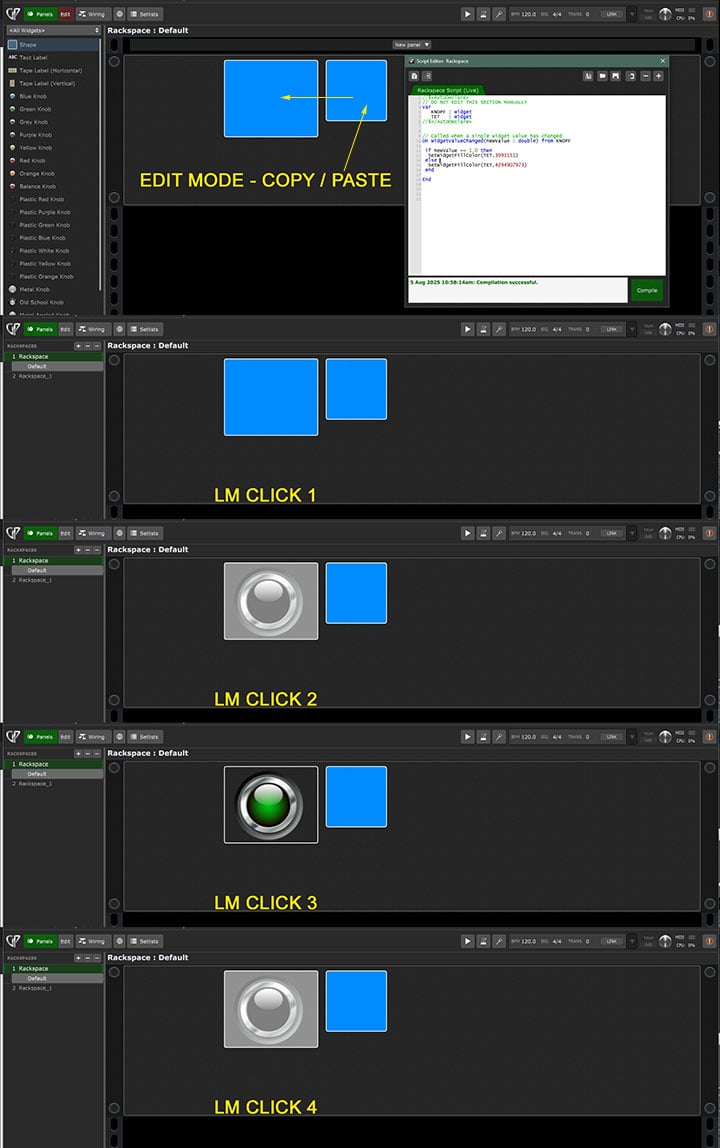
In Perform mode and Edit Mode, If the Plugin toggle is clicked, the (1) GP Shape widget does follow it.(turns dark as bypassed)
In Perform mode If the Shape widget is clicked, it does not toggle.
shape widget mapped to bypass but it does not yet toggle
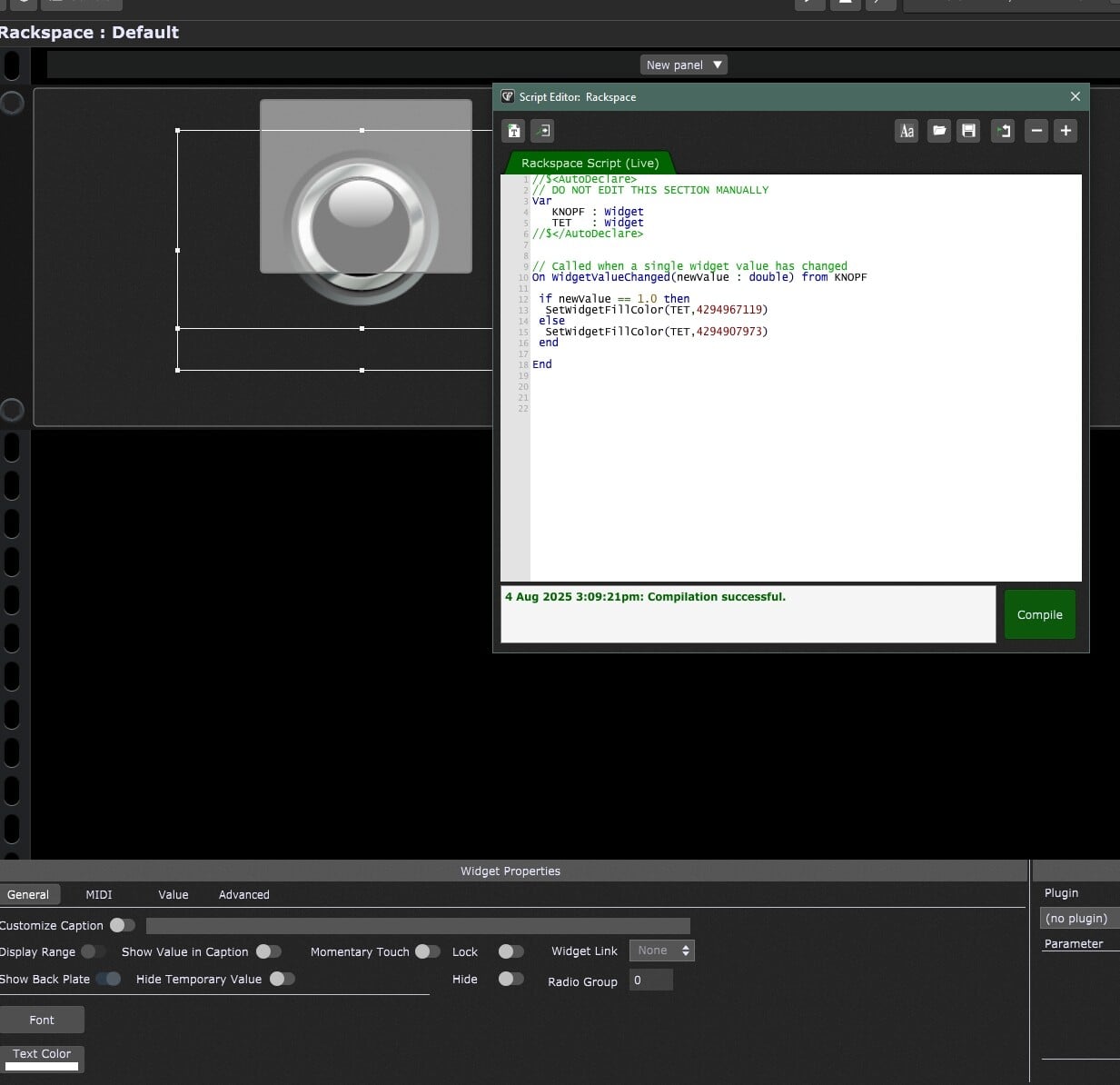
And with this little rackspace script you can set the color of the text label
//$<AutoDeclare>
// DO NOT EDIT THIS SECTION MANUALLY
Var
   KNOPF : Widget
   TET   : Widget
//$</AutoDeclare>


// Called when a single widget value has changed
On WidgetValueChanged(newValue : double) from KNOPF

 if newValue == 1.0 then
  SetWidgetFillColor(TET,4294967119)
 else
  SetWidgetFillColor(TET,4294907973)
 end

End
This looks like it will work but lost on step #3.
1)Use a Text Label Widget and a normal Button Widget.
2) Map the Button widget and move the Text Label Widget over the Button Widget
3) ..what?
Are these numbers a RGB+Alpha color? “429 496 711 9” “4294907973” RGB CHART
Sorry - I didn’t see your original post — but a piece was left out – depending on the order in which the widgets were inserted, you may still have to move the button BEHIND the shape.
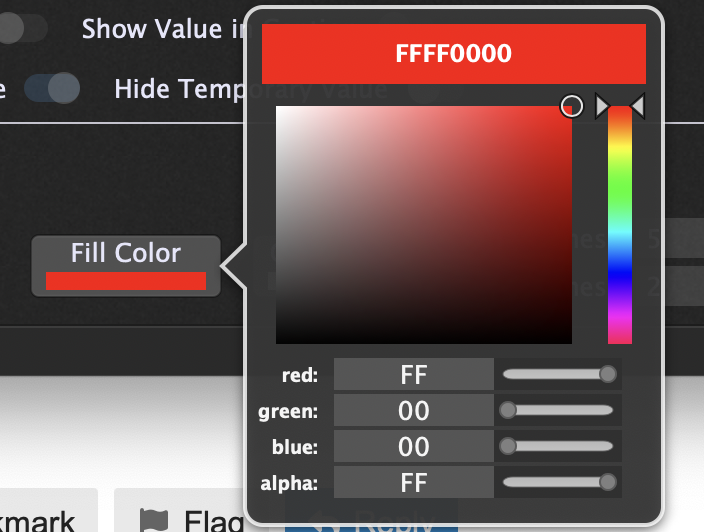
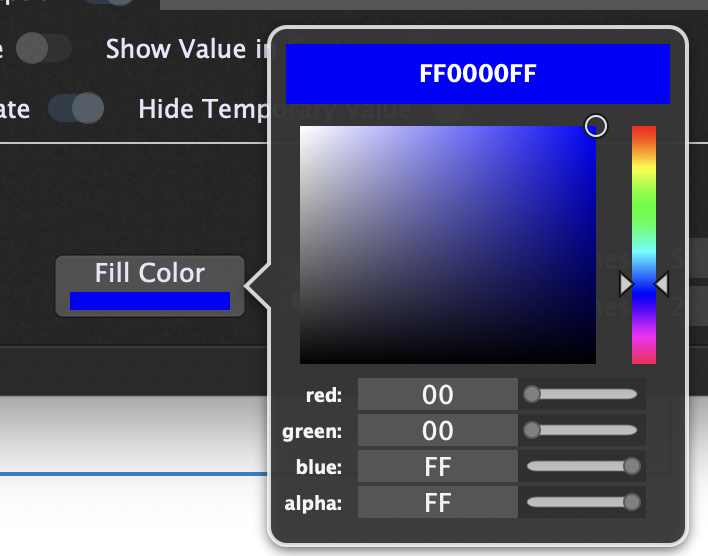
When you set the backgroundcolor and transparency of the shape widget you see the hex value representing that color.
The values used in the script are the decimal values of that hex values.
GOAL
Performance Mode -Shape color to fade / dim when bypassed
Performance Mode - perform a toggle function
When the shape is mapped to “bypass” and is pressed on the plugin, it dims. What causes that?
I want it to do that from Performance mode using the widget not the plugin itself.
because there are many features i’ve never even tried and don’t know any better not to.
In this example logically it would seem the Shape would not do anything, so when it is attached to bypass (rightly or wrongly) what’s causing it to change color?
Shape widgets behave a bit special!
So what you see is not a change of the color of the widget, it is rather the opacity/transparency value which is affected.This can be used for some visual effects…
You can try yourself (best overlap another widget with a shape widget to better see the effect):
If you assign a plugin parameter (any) to a shape widget, the shape widget will change its transparency according to the parameter value (0= near transparent / 127 = fully opaque).
An even easier test-setup for this would be to put the shape and a knob into the same widget link group… then you can control the transparency of the shape with the knob.
In your special case, the bypass-parameter will have only two states ON/OFF so the shape will only get switched between transparant or fully opaque.
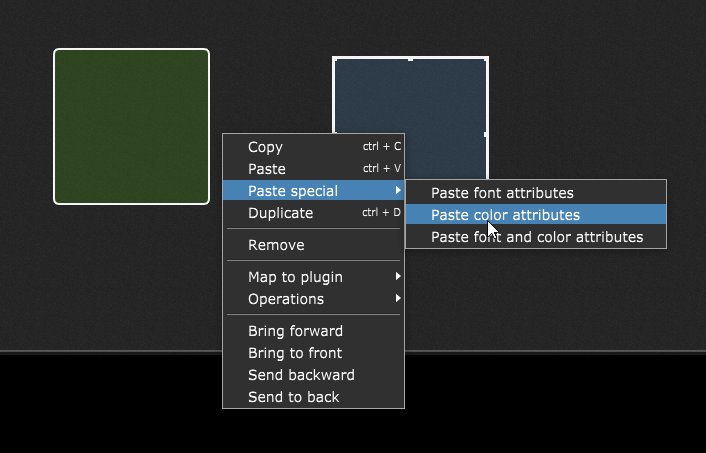
If you copy the entire widget, then you can right-click another widget > Paste Special > Paste color attributes. Not exactly what you’re looking for but it might be helpful.