GP5/Windows 11 and using RME with latest drivers. I have no AV software installed as I typically run GP offline (laptop for live gigs). I bumped the sample rate up to 48k and started having audio glitches. I tried going back to 44.1k and GP freezes. I reboot, manually set sample rate in the RME control program to 44.1k and save. When I load GP it changes back to 48k. I am unable to change the sample rate back to 44.1k now. Seems to be stuck at 48k. Any ideas?
- Open GP with a blank gig file
- Change the sample rate in Options > Audio Setup
- Open your gig file
Maybe a silly question: how do I open GP with a blank gig file? It always loads the previously used gig file when I open up GP.
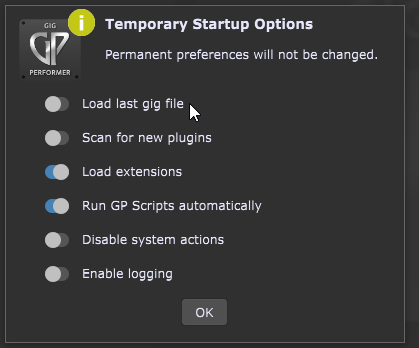
[Resolved!] Thank you.
@BobM One other thing to check is how your Windows audio is configured. Many years ago, I had the same problem you mentioned when I switched from 44.1K to 48K. It turned out that I needed to change the Windows audio configuration from the default 44.1K to 48K. Note that I was routing Windows audio to the monitors connected to my audio interface, but not via the ASIO driver.
Right-click on the Start icon lower left. Search for “Control Panel”. Click on it, then on “Sound”. Left-click on the speakers used for playback, then click on the Properties button. Click on the “Advanced” tab and verify that the sample rate in the dropdown list matches your audio interface’s sample rate. I have my UCX II configured for 48K, so the only choices that show up for me now are 16-bit 48K and 24-bit 48K.
Windows defaults to 44.1K on a fresh install. The first time I switched my audio interface to 48K was when I started getting the glitching and dropout. I haven’t tried switching my RME back to 44.1K and checked what shows up in Sound | Advanced.