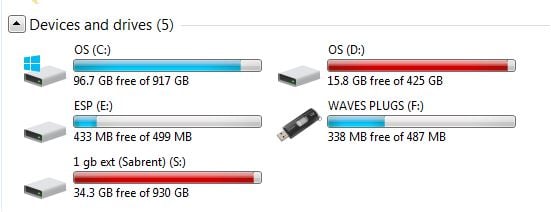
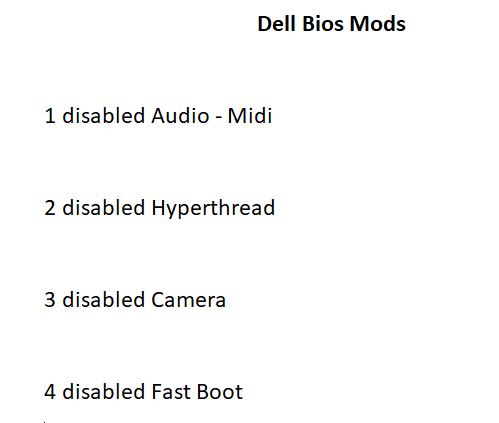
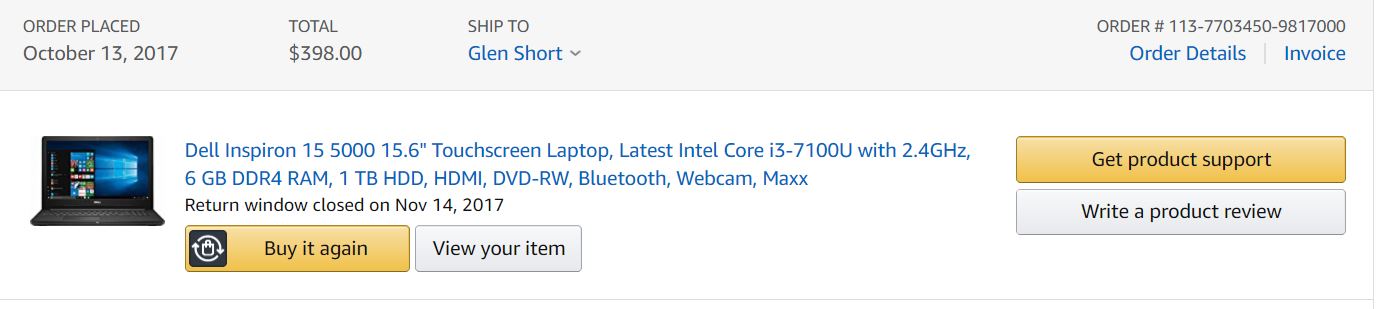
Possibly Mr Pudar could chime in on this. Having some latency trouble with GP5 and XR18. Images included with drive specs and BIOS mods, as well as PC specs. Can’t seem to get below 512 buffer. Also loading some Kontakt files are slow, for example Pedal Steel Guitars takes a more than a minute to load. Do you think I should avoid using an external USB SSD for my Kontakt and other large files, and install it a second drive? Is my PC core to limited. I have 16gb installed on this laptop. Windows 10 home.
First, is the XR18 plugged directly into one of the Dell’s USB ports, and not through a usb hub? Are you using a quality USB cable?
Second, what type of internal drives are you using? The model you gave is almost nine years old and one of the stock options was a 5400rpm HDD which would be painfully slow today. SATA SSD would be better. It looks like some models and a gen 3 m.2 slot which would be the best option.
USB 3.0 is not the fastest or most responsive bus for external SSDs. If you have an internal m.2 slot you would likely see big speed increase getting a higher capacity m.2 internal drive if your model Dell supports it.
Which brings me to #3) your drives are almost at capacity. SSD and M.2 drives performance degrades if they have less than 10-15% free space left.
if you are using SSDs it would be interesting to see if performance improves if you free up enough space.
Can you share more detailed specs on your drives? Is your C: Drive a 5400rpm HHD, 2.5 inch SSD plugged into SATA, or an M.2 NVMe drive (which all seemed to be options for your model Dell)? How are the other drives hooked up to your Dell?
Thanks for your input. I will collect my drive info specs. Do you have an opinion on my bios mods I posted here, done according to Mr. Pudar’s How to Maximize Your PC for Gigperformer.
Thank You.
Disabling devices you don’t use frees up memory and resources for Windows which is a good thing. However, the gains you get might be miniscule compared to other larger issues, such as your file system performance.
However, you might want to re-enable hyperthreading. Disabling hyperthreading can get you a boost in single core processing. (To my knowledge) A single instance of GP does not use multiple cores or threads and the slight boost can help GP performance. However, Kontakt does make use of multiple cores and threads (although you might have to go into Kontakt options to enable it). If Kontakt is what is feeling slow and sluggish, and if Kontakt is a major part of what you use GP to host, re-enabling hyperthreading might make Kontakt work better/faster. It shouldn’t be hard to test it either way, just make sure Kontakt is set up to make use of multiple cores/threads.
I’ll try that. Might have to take my laptop apart to determine what type of SDD drives I installed. I will likely install my S drive in the internal second drive port which originally came with a DVD installed.
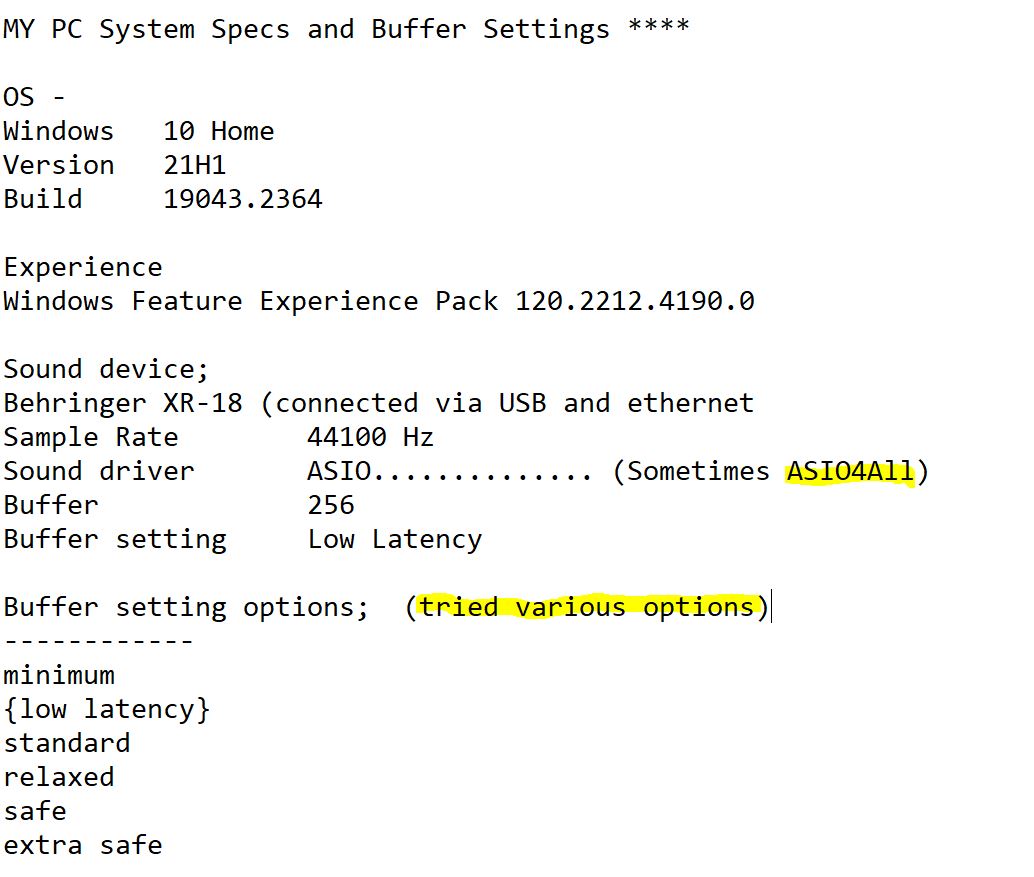
Are you using ASIO4ALL for the Behringer X18, or the Windows drivers from Behringer? The ‘(Sometimes ASIO4All)’ has me confused. ASIO4All is an absolute last resort for audio devices that otherwise would not be able to do ASIO. If native ASIO drivers are available (which they are for the XR18) that would likely get you much better performance than ASIO4All. If you are using ASIO4All to run your XR18 that by itself could be why you are having latency/buffer issues. Hopefully that is just Windows recognizing ASIO4All is installed and could run the XR18?
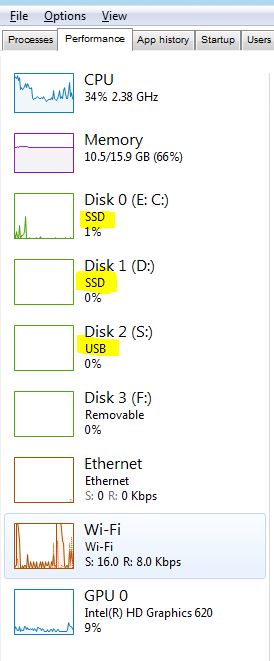
Looking at your drives, at least they are SSDs. The question now is are they 2.5 inch SSDs over SATA or NVMe M.2 drives? 2.5 inch SSDs over SATA (which was more common back in 2017 for laptops) are limited by the SATA bus for bandwidth and performance. If your laptop has NVMe M.2 slot(s) that would be the best option for running your audio software as NVMe M.2 is only limited by the drives performance and the PCIe bus which is much faster than SATA.
I was also curious about your C: and D: drives. Are they two separate drives or two partitions of one drive?
EDIT: You can use the free utility CrystalDiskInfo to get about as much information on your drives as possible.
Yes they are 2 separate drives. I took out the DVD and installed the second SDD 500gb. Think I may get better performance from my external S drive SDD USB, which I have Kontakt on and larger programs and files, which takes up the only 3.0 USB port I have on my laptop. Plus I have 2 USB 2.0 ports.
Also, as I recall, I used the ASIO4all for certain programs or something that wasn’t working for me, I will have to review that.
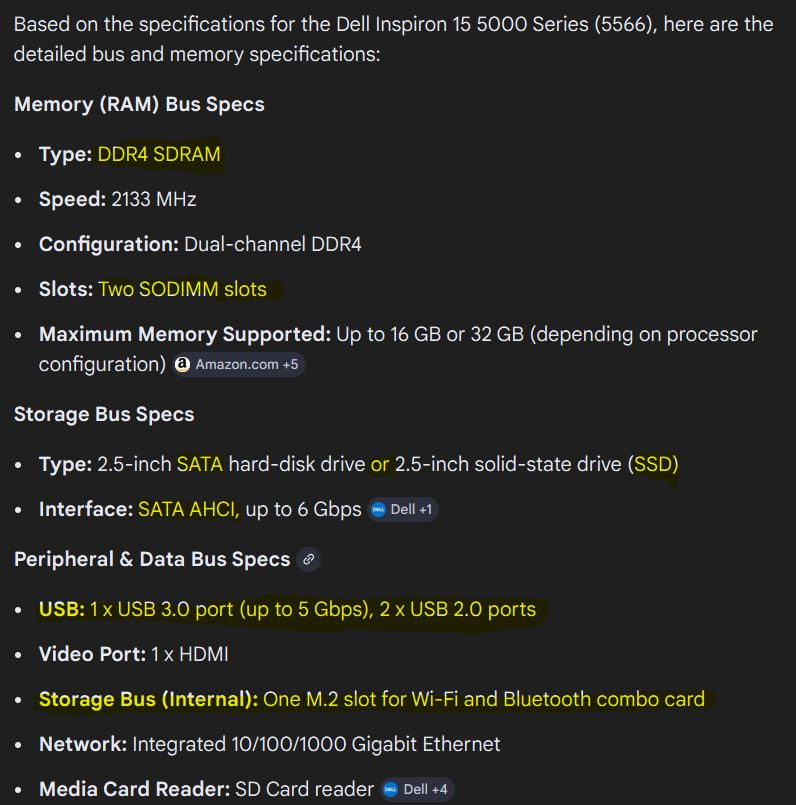
I also noticed I have an M.2 slot for wi-fi and bluetooth. Not sure if I could take that over with an M2 card?
and Yes the SSD are SATA
Do you mean that you get audio glitching if you reduce the buffer below 512, or do you mean that there is no way to set the buffer below 512?
If you can’t set it below 512 then you’re using the wrong driver.
If you’re using the correct driver and get glitching below 512 samples then you have a different issue.
2 Likes
This is most likely the issue.
Please download and install the latest driver for your interface and then post the screenshot of the GP Audio Options window.
Thanks for posting more detailed specs.
The M.2 slot for your dell is designed for Wifi and Bluetooth only. If you tried to re-purpose it for storage you would lose your Wifi and Bluetooth, and it would be unlikely an M.2 drive would work properly with it anyway. You could however, in theory, upgrade your Wifi and Bluetooth to Wifi6E or Wifi7.
As for your drives, what struck me the first time was that they are near capacity. As a rule of thumb you want about at least 20% free space on an SSD for maximum performance. If it drops to 10% or less space performance can get progressively worse. Just about all of your drives are in the 10% or less category.
Just to give you an idea, an SATA SSD will get about 500-560 MB/s. An M.2 NVMe SSD (PCIe 3.0x4 - this is the type of M.2 slot of your Dell’s generation) can get 3000-3500 MB/s. An M.2 NVMe SSD (PCIe 4.0x4) can hit 6500-7500 MB/s. The new gen 5 M.2s (PCIe 5.0x4) can hit 14,000-14,500 MB/s.
Your external Sabrent drive over USB 3.0 is likely hitting real world speeds of 400-500MB/s (at best). USB 3.0 maximum throughput would only be about 625 MB/s - more or less on par with SATA speeds.
If your Dell is working for you, does what you want, and you are looking to maximize its life, my recommendation would be first to clear up space on your drives to see if performance improves. Second, if you are running out of space and need more there are 2GB to 4GB 2.5 Inch SATA SSDs that you could dump everything to. The memory and storage market is insane right now, but you can likely find a deal on a name brand SATA SSD (avoid Temu and Alibaba for storage) since those are not in demand.