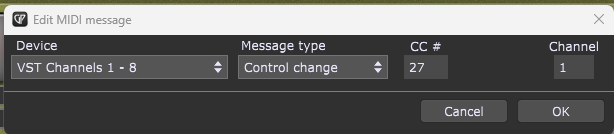
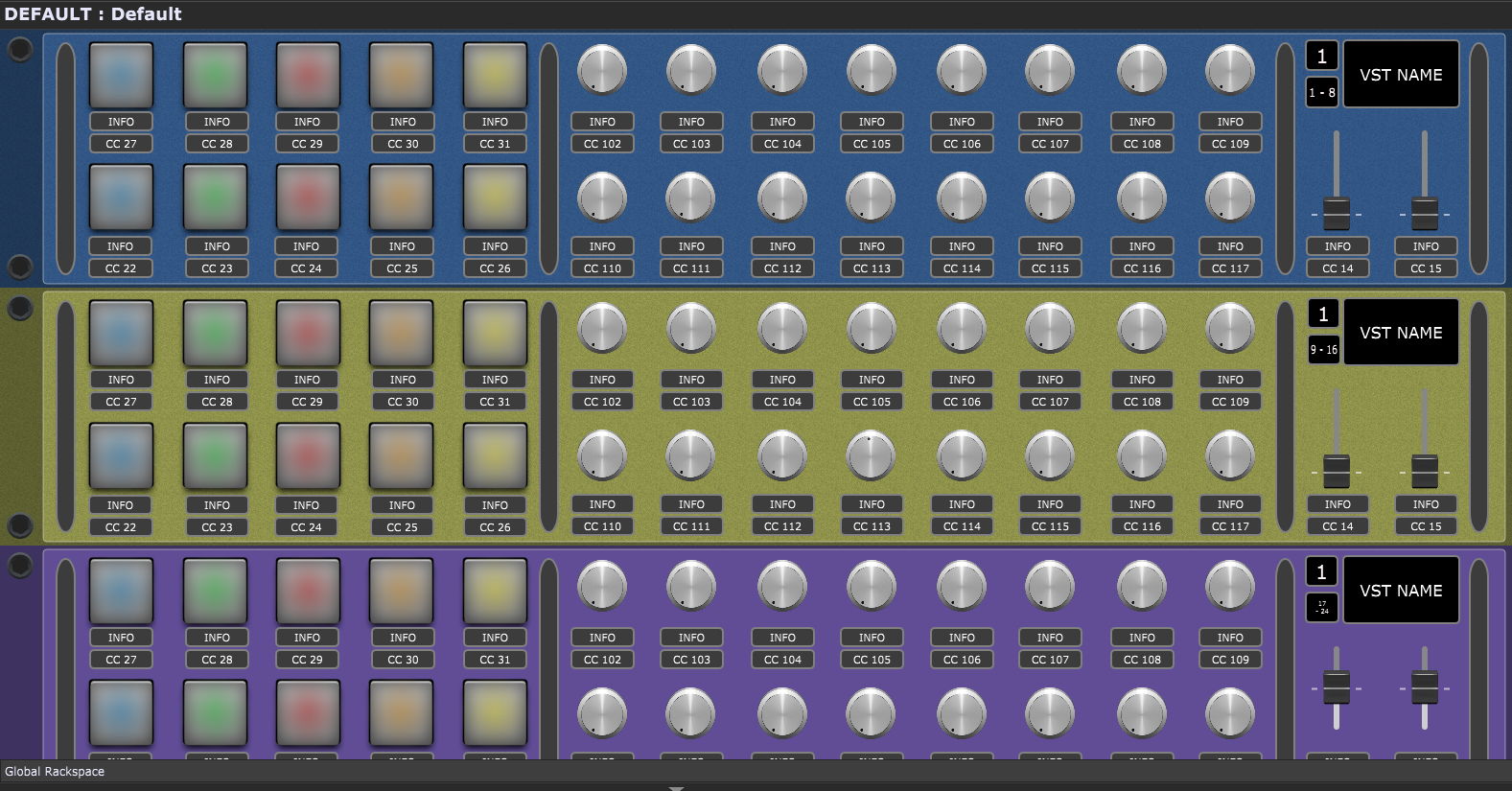
I use GP as a virtual 19” rack. For each of the VST’s in my rackspaces (designed for max 32 VST’s / channels in each rackspace) I would like to use a standardized panel that resembles the dials, buttons and pedals of my hardware controllers (FCB1010 and Doepfer Pocket Dial). This way these panels can be used to map hardware controls to VST controls and can show the values of the controllers.
I created test versions working on midi channel 1 on each of my 4 virtual rtpmidi interfaces:
The system works perfect, the problem is that if I duplicate a panel, I have to change the midi channel on all controls on that panel….. I have a preset system designed for 32 channels so to go from my 4 instance test system to a final 32 ….. that means adapting 28 controls x 7 x 4.
Is there a way to add a label that holds the channel in a parameter that I can re-use for all the controls on that panel? So, when I duplicate a panel I only have to change the midi channel in the label and this is re-used for all the dials, buttons and faders on the panel? Ideally a second label for the device would be godlike
There is no official way to do this (though it would be nice to have such a mechanism).
I can tell you an unofficial way to do it if you are comfortable with editing text but you need to understand that it’s completely unsupported and we won’t help if you do it wrong.
You probably know that you can select a widget, copy it and then paste it again. When the copy is in the clipboard waiting to be pasted, the information is stored as XML
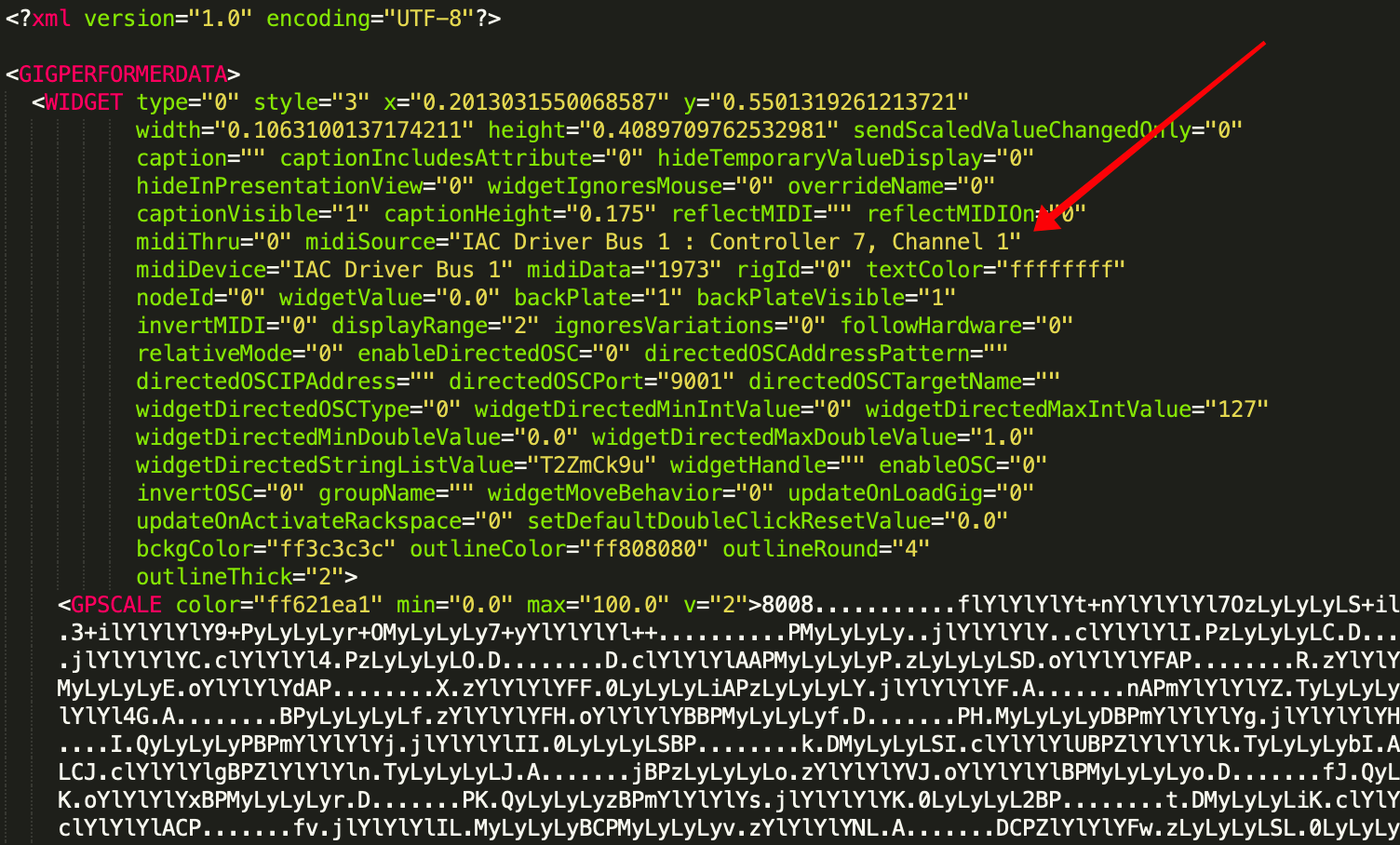
Here is an image of the partial contents of such a copy. Notice that there is an attribute called midiSource and the last portion of that attribute is the channel
 so to go from my 4 instance test system to a final 32 ….. that means adapting 28 controls x 7 x 4.