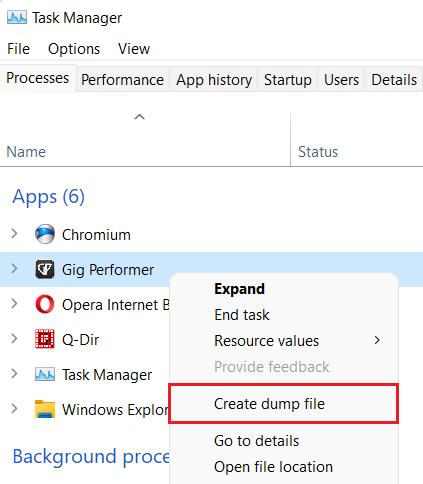
[3] Click Create dump file (or “Create memory dump file” on more recent Windows builds)
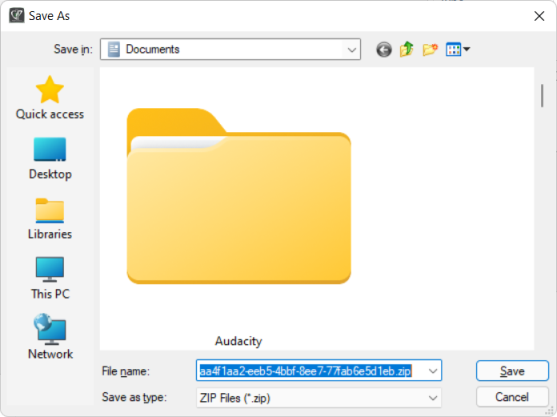
The result will be a very large DMP file. Make sure that you compress it (ZIP, RAR, etc.) as it typically has a very good compression ratio:
Since the resulting compressed file is still very big to upload it to the forum, make sure to upload this compressed to a file sharing service or your cloud account and share the link. Alternatively, you can use a service such as WeTransfer.
–
Notes:
this detailed report is useful for the devs to see the values of variables being passed around.
it is typically used for hard to reproduce issues.
you must do this while the application is still in memory; if Gig Performer crashes, then do the procedure above immediately when you see the crash dialog.
needles to say, you can do this procedure for any process. It is very convenient to analyze snapshots, especially if an application freezes or is stuck.
Seeing as the Forum has been specified by GP as the location-of-choice for the posting of crash dumps, could you please enable us to post large .dmp files in the Forum, or at least to a specific designated location in the Forum?
If necessary, access to that location could be by invitation (i.e. like Beta areas).
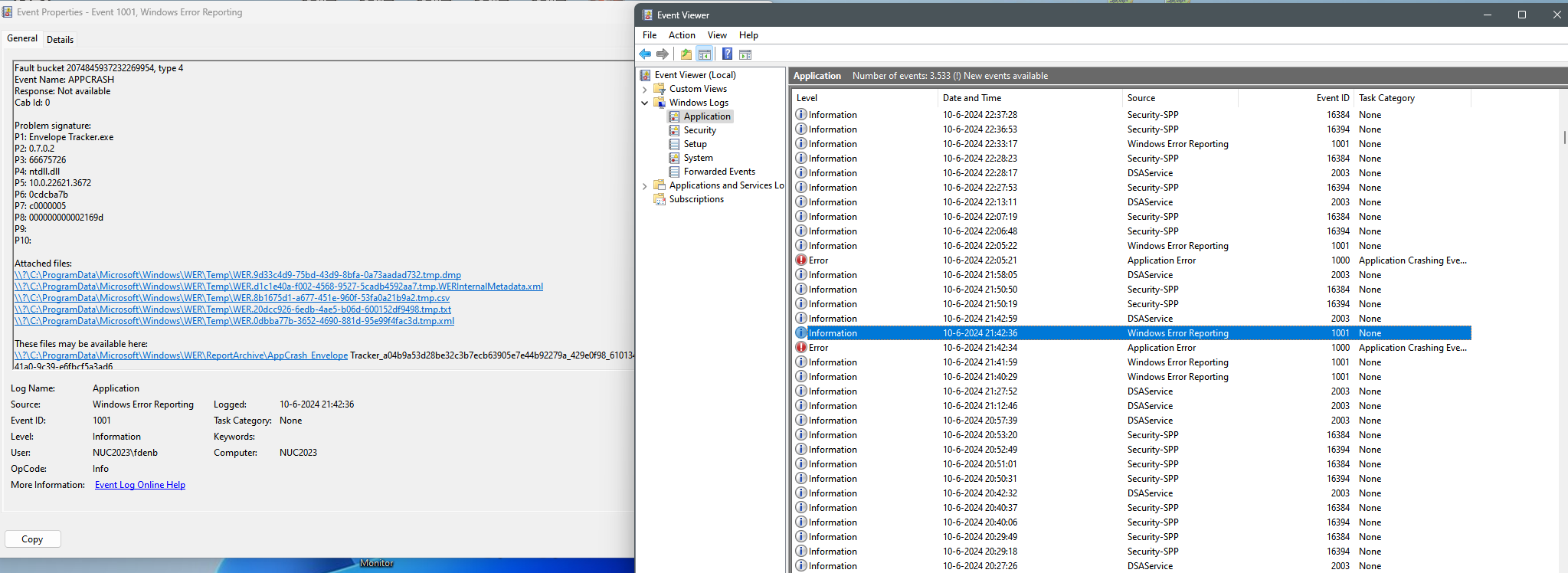
On Windows 11: after I click “Send Report”, a dialog appears for a very short time, indicating that the report is being wired to GigPerformer (via HTTP? I couldn’t see it, it went by so quickly). Then the dialog exits, never giving me a chance to Export or Save anything.
Yes, it may have shown up on our server but unfortunately those dumps don’t have any information that lets us know from where they came and the overwhelming majority of those dump files are due to plugin crashes.
We will analyze the files you uploaded and get back to you