Crackling with Powerful Laptop (with Ultimate Performance Plan Active)(Solution: ThrottleStop)

Removing cores (being a hyperthread or not) results in all processes evacuating to the cores that are left, so the effect might be detrimental, but it should hurt to try: you can always activate them again.

Btw, did you try Throttlestop (just curious)?

Not yet, Frank, but it’s on my short list if standard optimization doesn’t do the trick.

Jeff

1 Like

I am shocked to report the eliminating hyperthreading might have fixed the problem.

I just tried the problem rackspace and the crackling stopped (or was barely perceptible).

Look at the screenshot. Now CPU usage is being spread amongst more cores and the avg CPU is getting into up to 4.22. There is some excessive CPU, but there definitely seems to be improvement.

I am as shocked as anyone. (But, I would not be surprised if this does not last).

One thing that surprises me a little is your 64gb of memory is completely full. That can often cause problems because your system is going to swap things in and out of RAM as required.

What do you have loaded that’s sucking up all 64gb?

In your task manager you can click on the “Processes” tab on the left, then on the “Memory” column at the top to sort the processes by memory use.

1 Like

Good point. If disk access is occurring that could cause some audio artifacts.

Hey, guys, sorry I was in a practice.

Well I have over 200 rackspaces (maybe closer 250?) for all my bands. I really like the luxury of having all my songs/sounds available. And if I fix something in a song, I know it is fixed for all bands.

But you should know that the ram analysis really depends upon how long a period of time has elapsed after I start Gig Performer. Within 15 minutes or so it drifts down to 50% ram (sometimes a tiny bit less). Overwhelmingly the ram is used by GP rather than any other programs. (I do check that a lot in the Task Manager).

But, I think you are right that some artifacts could be ram related, but only shortly after I start up GP.

I could split things up into 2 or 3 gig files, maybe one for my 80’s bands, one for classic rock, and one for songs I rarely use.

Or I could get even more ram (up to 128 maybe). (I don’t want to use Predictive Loading.). But loading time is an issue (I have one new (Kontakt) saxophone library I feel I need, but it takes over 2 minutes to load. I tried batch re-save a number of times and created an exception for anti-virus, which is shut off anyway).

I am surprised that this worked. I hope it does not revert back to being a problem (maybe there are some cores that just do not work well?)

But, that fact that it is able to get into the 4.23 CPU range (instead of 3.26) make me think maybe this will work.

Thanks again for all help in this great community!

Jeff

1 Like

Glad to hear its working.

Just a quick note related to the difference in the two processors.
The i9-12900HX has 8 performance cores and 8 efficiency cores.
The i7-13850HX has 8 performance cores and 12 efficiency cores.

The e-cores run at slower max clock speeds than the p-cores. As @Vindes pointed out, the clock number you see in the Task Manager is an average of all the cores. So, when you were seeing a lower number with the i7-13850HX machine, its could be partially due to there being 4 more of the slower e-cores factoring into that average. In reality, the p-cores for both the i9-12900HX and i7-13850HX may have been running at near identical speeds.

I do think that some sort of architectural realignment is in order if you’re maxing out 64gb of RAM at times. I don’t think I would ever want to reach even 75% of RAM, disk space, or CPU usage for a live performance rig, at any point. You should always factor in room to expand and breathe when designing your system, not only for growth’s sake but also for stability of performance. Maxing out a system is fine when you’re playing video games for fun and can deal with an occasional click, glitch, frame rate drop etc., but not when its pro audio or live performance. :slight_smile:

May seem like an overly simplified question, but do you have your laptop plugged in? Not on battery? I’ve had few brands that slow down CPU on battery and just always be plugged on for turbo CPU performance.

Why?

“However, in many circumstances disabling hyper-threading can bring about improvements in audio performance,” → LINK
(you said, you were re-reading the guide?)

1 Like

Yep, Nemanja, I did not have time to do a full optimization, but I did a read through part of the guide at work and a decided to try disabling hyperthreading (I also updated my audio interface drivers, which did not do anything).

Of course, I was hoping it might do the trick. But. I tried to keep my expectations in check.

So, your Optimization Guide definitely gets credit. Thanks, Nemanja!

EDM, I think my i7 (13 Gen) “problem” machine has even more cores.

The main point of my last post is the average CPU of the "problem machine (i7/Gen 13) went from 3.26 to 4.22 after disabling hyperthreading. (So, it is a comparison of the “problem” machine before and after disabling hyperthreading, not a comparison of the two machines).

I will see if it “sticks”. If it doesn’t maybe the real issue is I have some p-cores that are not really functioning optimally (?). But I have enough p-cores (I think 10 actually) that I could potentially disable some so only the “good” cores are used (?).

I am thinking a bit above my tech quotient.

Hopefully this will just stick.

EDM, with regard to ram, I don’t know if it is common for ram use to go down over time (15 minutes or so). But it settles at 50%. I do use some big sample libraries and I have a lot of rackspaces. I may have to consider splitting my gig file into several smaller gig files or possibly getting even more ram.

But, right now I hope the crackling stopped for good.

Thanks, for the guide, Nemanja!
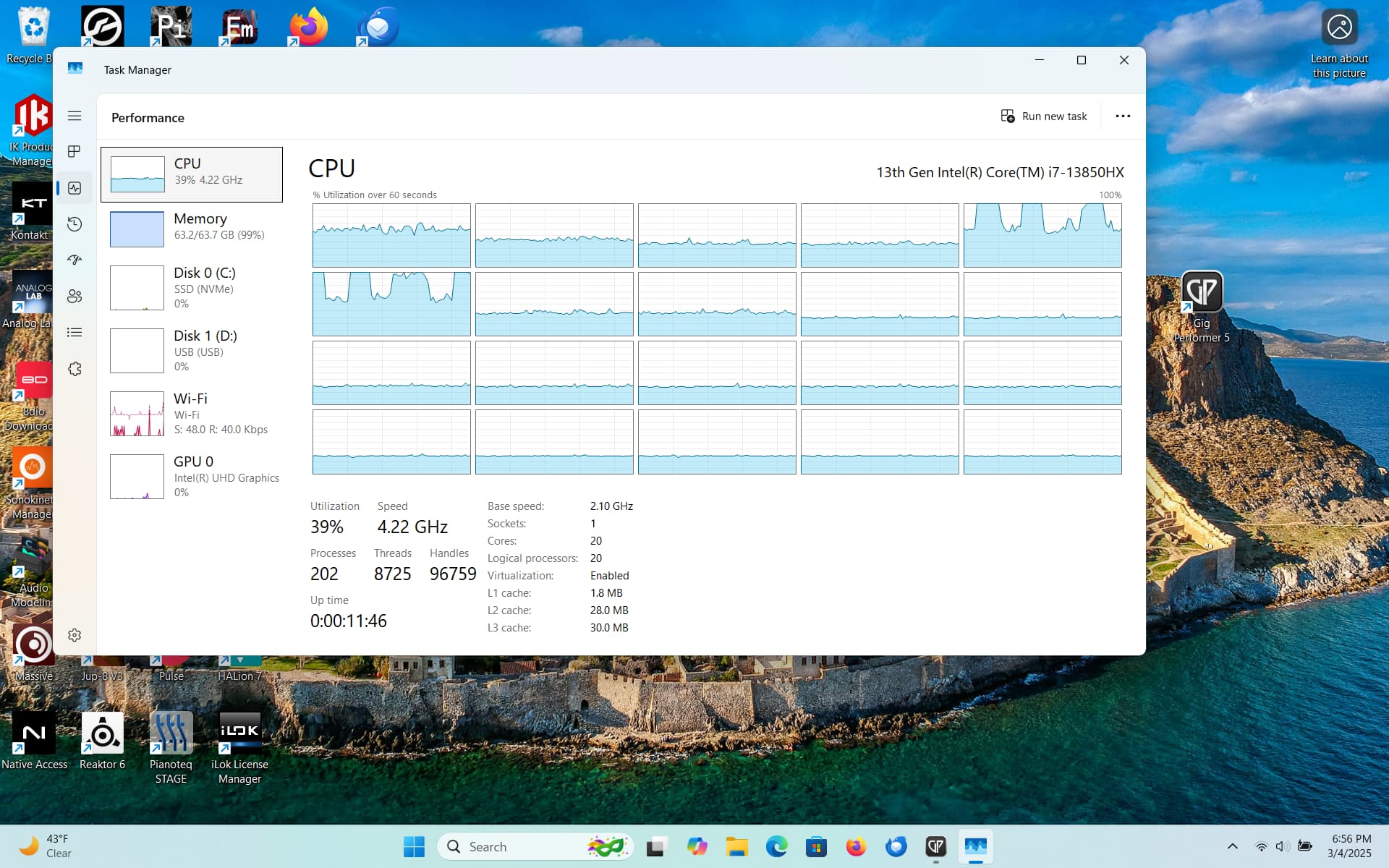
I tried this morning.

It started off better than it had been before disabling hyperthreading, but more crackling than yesterday and got worse over time. It was weird, I sort of pushed it (played lots of notes with sustain pedal on high cpu rackspace) enough to make it crackle and then it continued crackling more (even when I was not “overpushing” it).

Avg cpu is back down to 3.26 range instead of 4.23. I think that may be a key data point. (?)

I think I’ll try Frank’s suggestion: Throttlestop.

[Laptop is always plugged in]

At a minimum I think it’s worth deleting half the rackspaces in your gigfile, saving it under a new name, and then seeing if that still exhibits the crackling.

I’d also check the memory usage under that smaller gigfile. If you’re still using all 64gb then you may still have a hard time completely eliminating crackling.

Well, it looks like Frank may have saved me again.

I installed Throttlestop and made the one change in settings Frank suggested (Speed shift epp set to 0).

I tried my problem rackspace and no crackling.

Perhaps most important, avg CPU was running around the 4.3 range instead of the 3.3 range.

Hopefully this is will stick, but I am more optimistic, since Throttlestop is actively running to trigger this.

So, I will run Thorttlestop several more times to see if it sticks then I will research how to use the Scheduler so it opens automatically whenever I start the laptop.

Thank you again, Frank.

Vindes, I’m definitely grateful to get your input. You know much more than me (always helpful!) But, with regard to ram, I do keep an eye on this, but I do not think it is the cause of this issue.

  1. It is not happening with my other similar laptop which handles ram in the same way as the “problem” computer. (I know I use a lot of ram and, at 64 GB, I also have a fair amount of ram.)
  2. With both laptops, although ram use is initially high (topping at 100%) both pretty quickly settle to about 50%. I don’t think 50% of ram usage is a problem (start up time is a bit of an issue, but that’s another story). Importantly both my “problem” computer and my non-problem computer behave the same (or very similar) way.
  3. My “problem” computer was running at an avg cpu of 3.3… while my non-problem computer was running at 4.3… In both cases, with turbo, the max is 5.0 CPU (actually 5.2 CPU in the “problem” computer). This makes me think this was the problem.

And hopefully Throttlestop is the solution.

But, I think occasionally I do get an artifact or delay in hitting a note that seems worse when I first open GP. I think that is caused by the ram issue you are talking about. But, so far I really like having one big Gig file for everything. And this infrequent issue is not enough yet to make me change. (I might eventually get even more ram, but this will not fix the other issue of long loading times to start GP).

Anyway, after a bunch of times trying this, I will let you know it is sticks. Fingers crossed.

Thanks again for everyone’s help.

Glad you got it fixed, and I hope it stays fixed!

One nice thing about this community is people will share a lot of ideas and experiences, and usually one of them will be a working solution.

The thing about crackling is that generally the only thing you know for sure is that the cause is the audio thread not completing the calculations required to fill the audio buffer before the audio buffer is sent.

On windows there are a lot of things that can lead to that, so it’s usually some trial and error to figure out solution that works.

3 Likes

Glad the issue is solved. Let’s hope it lasts. As @Vindes says, there are many reasons for this kind of problems, but there isn’t much that really indicates the cause. In the end, most of the time, it comes to trial and error

2 Likes

Well I think I have used the “problem” laptop enough times to confirm that the solution is “sticking”.

Throttlestop (using Frank’s simple suggested settings) seems to have done the trick; no more crackling on the tougher rackspaces that had been causing crackling.

The average CPU while using GP is usually in the 4.23 range instead of the 3.36 range. So, I think that using a greater share of the CPU this laptop is capable of was the key. (Who knows why the Ultimate Power Plan did not do this own its own?).

For the past week or so I have set up Windows Scheduler so that Thottlestop starts automatically whenever I log into to the computer. (So easy even I could do it!).

Thank you Frank, Vindes, Ed, Nemanja, ztones and everyone else who offered their assistance.

Jeff

3 Likes

That is great news! I’m curious however, will the laptop run hotter because of the constantly higher CPU?

That’s what you can typically expect when you suppress throttling, and that was my experience when I did it.

Running hot also degrades the battery much faster. And wears out the fan. I also had one laptop where the video card was garbling the output completely, so the laptop became unusable when overheated, and failed after about a year, but that’s an extreme example, I don’t think it happens often.

In general, throttling isn’t sitting there just for fun, it serves a purpose.

But if you can’t use the laptop without suppressing throttling, what are the options? Throttling causes problems with audio applications.

If you’re able, remove the battery altogether. I would never trust laptop battery power for a show anyway. It also serves to remove a source of heat and improve airflow.

Throttlestop the way I use it, does not disable all throttling (luckily), otherwise I would have burned my cpu to kingdom come already. I use it mainly for tweaking speed step and other turbo-like features. This way it hints the system that I favor performance over efficiency.

And yes, the system gets hotter, so the fan is doing overtime.