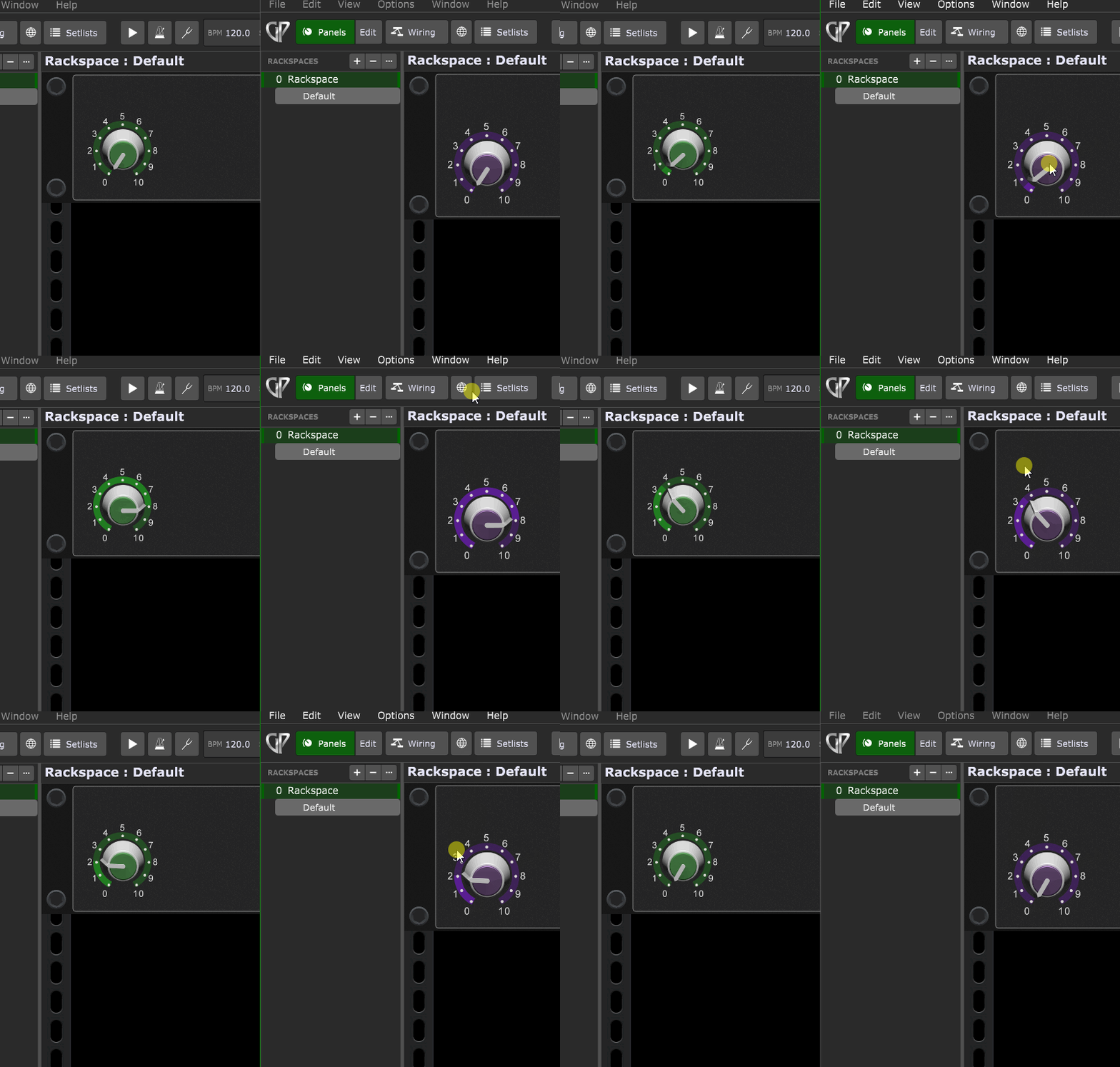
Direct Addressable OSC is the way to go.
-
In instance A, open Options > OSC. Enable OSC(if it isn’t already) and give the listening port a unique number. I’ve used 15002 in this example.
-
Also in instance A, add a widget. Give it an OSC handle. Turn on the Enable OSC switch, and take note of the OSC address shown next to the OSC handle name.
-
In instance B, open Options > OSC and make sure the Show Direct Addressable OSC switch is turned on.


- Also in instance B, add a widget. In the Advanced tab, under Direct Addressable OSC, enter the OSC address shown for the widget you added in instance A. Add 127.0.0.1 as the target IP address and the OSC listening port of instance A. Turn on the Enable Widget Direct OSC switch.

- The widget in instance B should now control the movement of the widget in instance A.