When a simple LED on/off is no good for your panel. This small script is intended to be used in rackspace script files. It allows the use of bi-coloured LEDs on the panel without any change to the panel or MIDI mappings to the widgets. In the screen shots the switch and knob are used to control the bi-coloured LED.
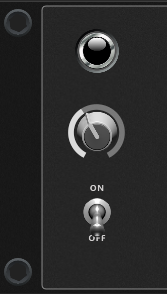
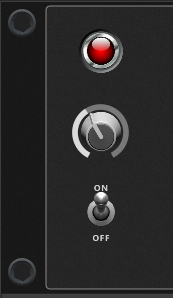
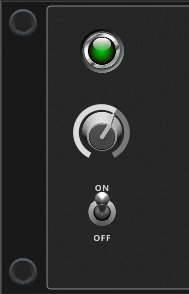
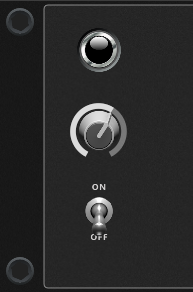
The bulk of the work is done in the included script file, but this file is only needed once in any rackspace script, and any number of bi-colour LEDs can be used. In addition to the script the LED must be defined, both on the panel and in the rackspace script. This can be added to already built rackspaces without changing the panel layout or any previous widget mapping.
Step 1
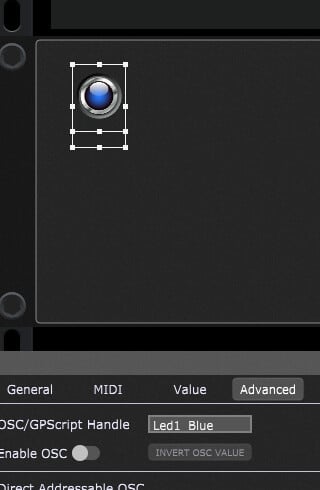
To build a bi-coloured LED, place a LED widget on your panel where it is needed and the correct size (or use an existing LED). Then ensure that the Widget property OSC/GPScript Handle in the Advanced tab has been set as the name of the widget. This is the on colour widget. This widget is used as the control for the LED colour and can be mapped to MIDI inputs, OSC messages or linked Widgets (as in the screen shots above).
Step 2
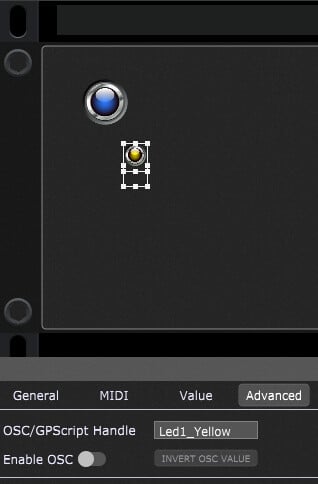
Add the second colour LED widget, the position and size is not relevant to operation. This widget is used to control the ON/OFF state of the bi-colour LED. It is not necessary to control this widget via any mapping, as the bi-colour LED can be turned on when initialised. Then ensure that the Widget property OSC/GPScript Handle in the Advanced tab has been set as the name of the widget. This widget will be aligned and sized when initialised.
Step 3
Unzip this script file to your disk placing it in a folder that will allow the include command to find the script. colouredleds.zip (1.4 KB)
Add the code below into the rackspace script editor. Make sure that the include path to the working script colouredleds.gpscript is in the correct place (optionally the code from the file can be copied into the rackspace script editor). Ensure that the names used for the widget variables match the names given to the widgets in Step 1 and Step 2. Note that the order the widgets are used, is important to correct operation.
// Include the Bicoloured LED scripts (path under Gig Performer Directory)
Include "Coloured Leds/colouredleds.gpscript"

// Link Widgets used in the bicoloured Led
var Led1_Blue : Widget
var Led1_Yellow : Widget

// Processing the Coloured Leds
//------------------------------
On WidgetValueChanged(w : Widget, index: integer, newValue : double) from Led1_Blue , Led1_Yellow
    LedUpdate([Led1_Blue , Led1_Yellow], index, newValue)
End

// Initialise the LEDs
//------------------------------
Initialization
    LedInit([Led1_Blue , Led1_Yellow], LED_ON)
End
Step 4
Compile the gigscript and the widgets will be automatically aligned and placed in the right z order for easy mapping at a later stage. Map the first widget (blue in the example) to a MIDI CC number of your choice, the bi-colour LED will now switch on the CC message (in this example Yellow OFF and Blue ON).
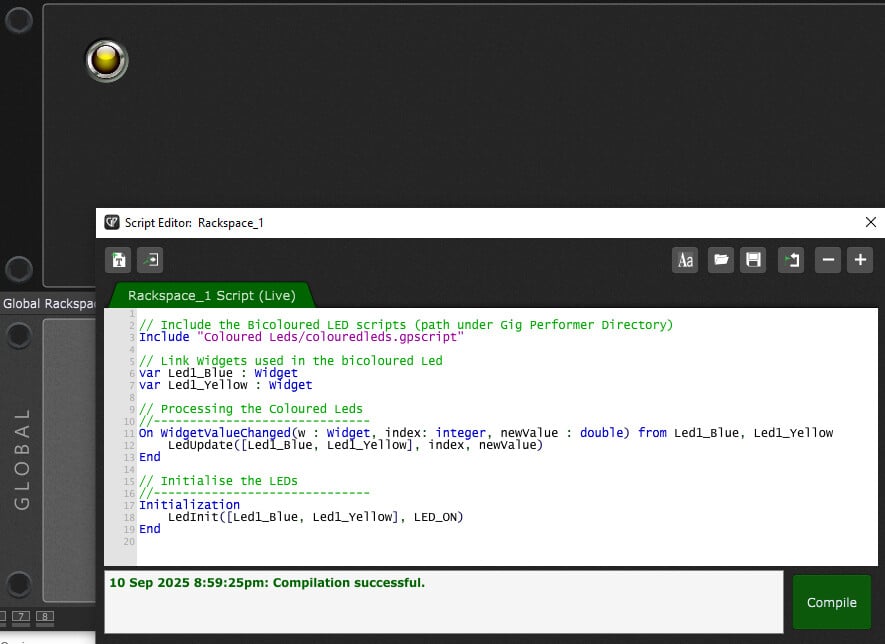
To control the on/off state of the bi-coloured LED, set the value of the second widget (yellow in the example).