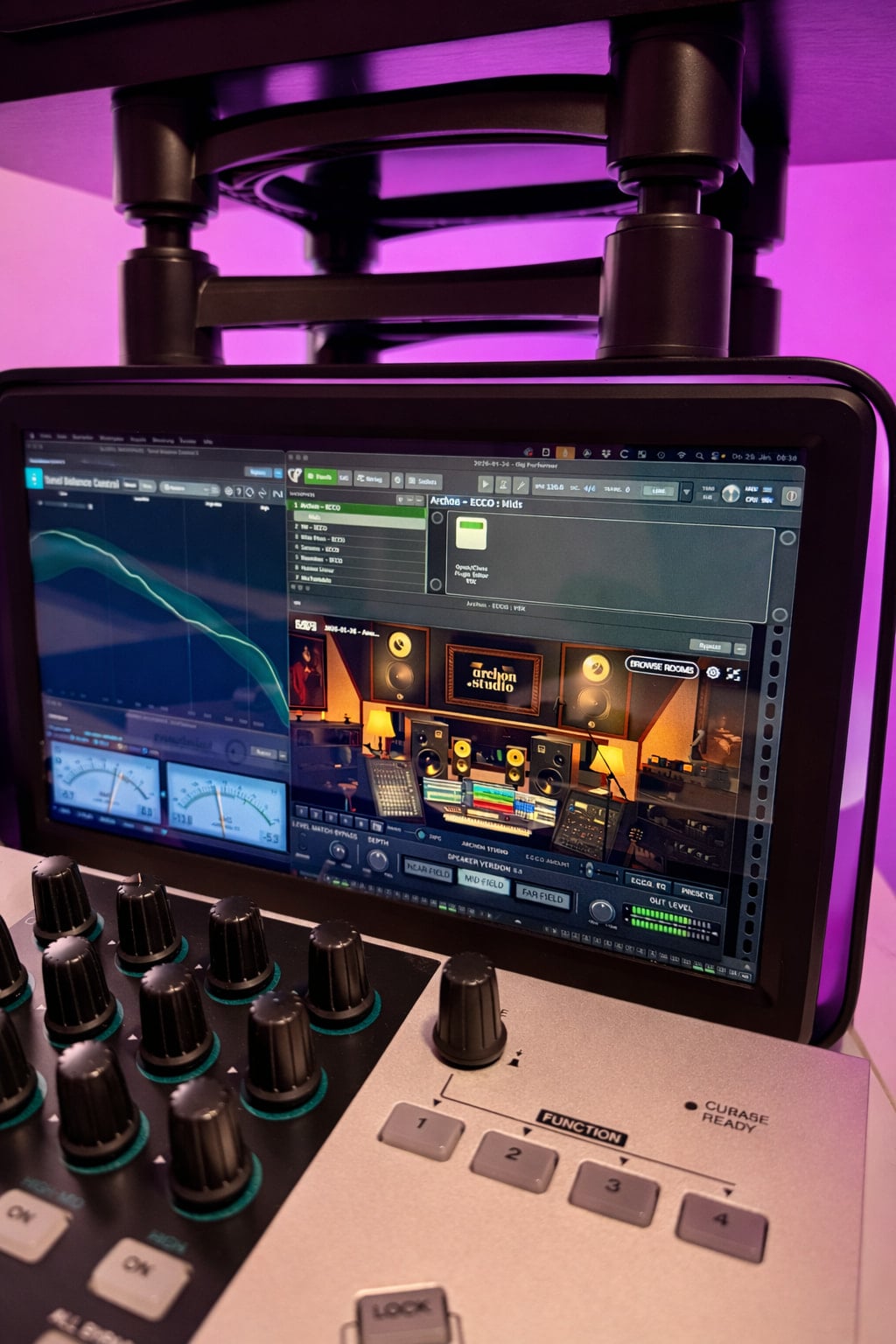
A long-time Gearspace forum member “nott” shared his thoughts about Gig Performer.
–
In the past, I used a variety of different solutions for system-wide plugin integration.
Unfortunately, many apps had major limitations for me (unclean integration or even loss of full access to the routing capabilities of the sound card).
Other solutions were completely unclean in their processing and altered the monitoring path.
A colleague then pointed me to Gig Performer. And I am honestly grateful to him for it every single day.
I mainly use GigPerformer for VSX, speaker routing, the MixToMobile plugin (to send audio to my iPhone), and for EQing additional headphones.
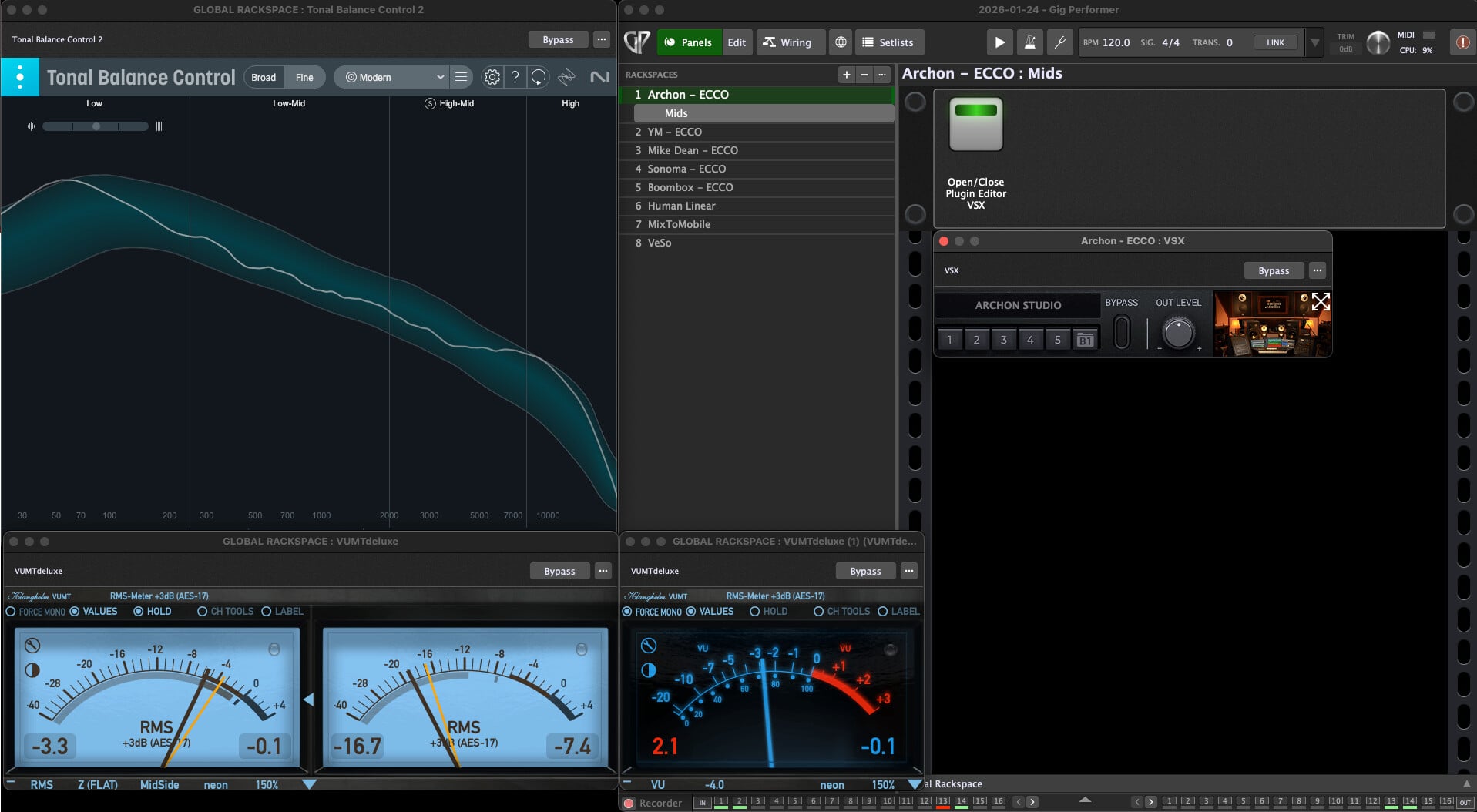
In addition, I run several analyzer tools permanently and independently from the audio signal path.
One of the best features is the Stream Deck integration – I use it to switch between VSX rooms or headphone EQ profiles with a single button press.
You can really customize the workflow completely to your needs.
And the app runs without dropouts and remains bit-accurate down to -138.8 dBFS (I use it with a Metric Halo ULN-8mk4).
Everything starts automatically as soon as I boot my computer, and I don’t have to worry about anything else.
Another thing I truly love about Gig Performer is that I retain full control over my entire setup – I have full access to my audio interface (which is often a downside with other solutions).
And all of this runs at minimal latency (which is extremely important to me).
In my opinion, Gig Performer is the best, cleanest, and most stable system-wide solution available.
The app also works on both Mac and PC (although on PC you should know what you’re doing - more on that later).
How I get started:
The most important thing to know is that the best approach is to route the audio signal of the audio interface via virtual channels through Gig Performer in order to insert plugins there.
If you don’t have an interface with virtual channels (e.g. when using a MacBook directly or a DAC/amp without inputs), you can use an additional tool in the background that simulates virtual channels (such as the free tool VB-Cable).
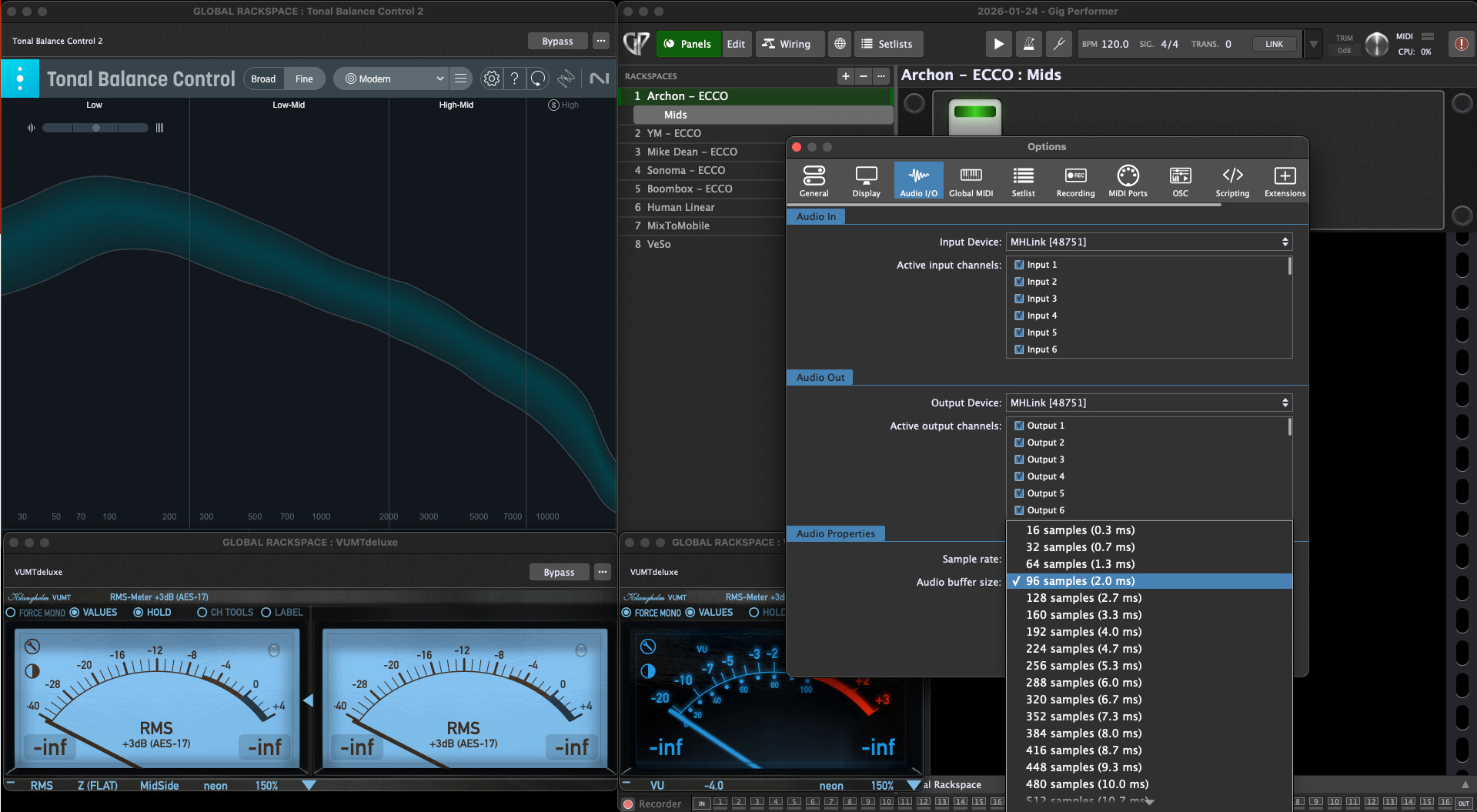
Under the menu item Options > Audio Setup > Audio I/O, you select either your sound card or the additional drivers for the virtual channels (e.g. VB-Cable).
Basic steps to run plugins via your system audio path:
In my setup, I use two layers and split things up a bit.
Rackspaces:
This is the layer where sound-shaping plugins such as EQs, room correction, or VSX are used.
Global rackspace:
This layer is used exclusively for analyzers and meters.
If an analyzer were to introduce latency or alter the source signal for any reason, it would have no impact on my monitoring signal path.
I’ll try to summarize the most important steps as briefly and clearly as possible:
-
Select the audio driver:
under Options > Audio Setup > Audio I/O, select either the audio hardware or virtual audio cables. -
Connect plugins in the Wiring view:
In the Wiring view (inside a rackspace), you see two horizontal bars:
top: Input
bottom: Output -
Plugins are inserted and connected along this signal path from top to bottom. Plugins are added via right-click. If you hold down the Shift key, you can quickly move plugins between positions, with the routing updating automatically.
-
Additional info (keep plugin windows open via widgets):
At first, it may feel a bit unusual that plugin windows don’t stay open automatically after a restart. However, there is a function that allows you to create a plugin open/close button.
If you want to keep a loaded plugin easily accessible, you can add a widget button via Panels.
You can then assign this button a function such as “Open/Close Plugin Editor” for a specific plugin.
That’s basically all you need to run Gig Performer system-wide with plugins.
For all PC users, there is also a step-by-step guide in the forum explaining how to use Gig Performer with a sound card or a DAC/amp without virtual channels: LINK
For Mac users, getting started should be easier, since macOS is simply designed to be more open in this regard.
In general, the Gig Performer forum is the best place to go for any questions. The developers and even the company founder are active there themselves.
Even if this may sound a bit complicated at first for some users, I can assure you: in practice, it really isn’t.
Website: https://gigperformer.com/